Clients in WireCat Desktop
Your CRM deals and leads as a table or as a board by stage. Move a deal to another stage, map each CRM's stages onto yours, and choose whose deals are copied.
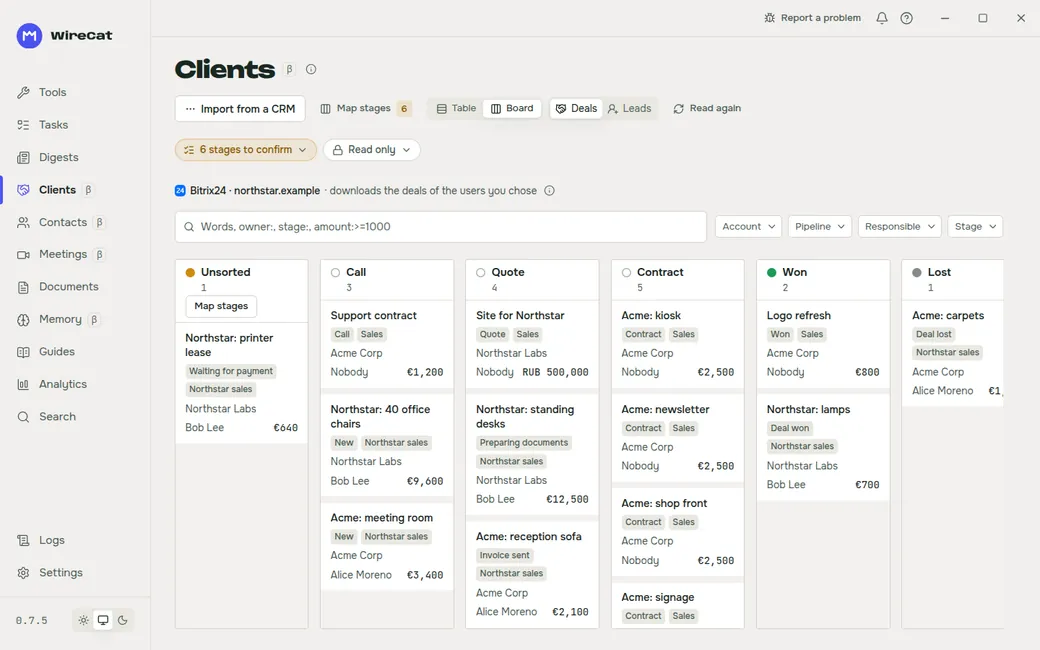
You keep your deals in a CRM, such as Bitrix24, amoCRM, Attio or HubSpot, and talk to the same clients in chats and mail. The Clients page in WireCat Desktop shows those deals and leads as a table or as a board by stage. Use it to see where each deal stands and to move a deal to its next stage without opening the CRM. A move here goes to the CRM too. Your agents read the same deals, so they can answer "what is open with Acme?" from the same picture. The page needs Memo, and moving a card also needs that CRM's tool. HubSpot leads and Attio cards are read only on the board: change them in the CRM, then sync.
On this page:
Clients is marked beta: you see a β beside its name. The section is new and lightly tested.
Before you start
- On the Tools page, install your CRM's tool and sign in. Bitrix24 signs in with an incoming webhook or a local application: Bitrix24: a webhook or a local application. HubSpot signs in with a service key: HubSpot: make a key.
- A sync copies your own deals and leads, those of the user who signed in, and the clients on them, never the whole portal. To copy other users' deals, choose them, and yourself too if you want your own: Whose deals are copied shows the commands. HubSpot copies the whole account, because its key names no user.
- On the Clients page, click Import from and your CRM, such as Import from Bitrix24. With more than one CRM profile, Import from a CRM asks which.
The line Sync under the buttons names the CRM account and Chosen users. Its ⓘ repeats what is copied. If an account is set to copy everyone's deals, the page says that its sync stops and offers Only mine.
Table or board
View switches between Table and Board, and Deals and Leads switch what you see. The search field and the filters for account, pipeline, responsible person and stage work in both views.
- Table: Title, Stage, Amount, Pipeline, Contact and Updated, with a pager below.
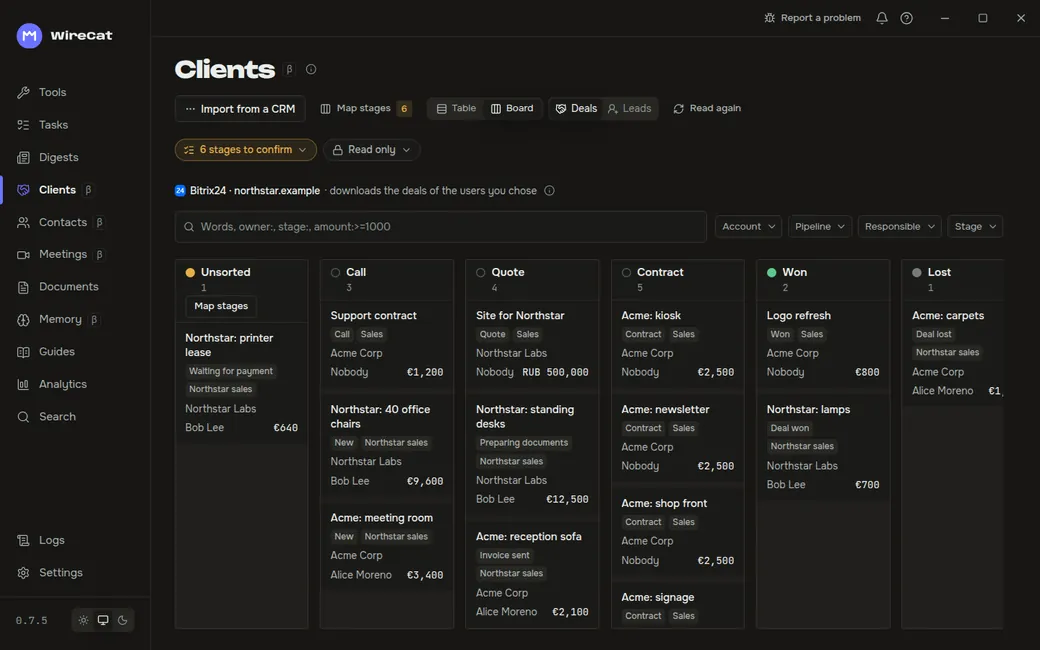
- Board: one column per stage. A long column shows its first cards and pages the rest. The Unsorted column holds cards that have no stage yet.
Move a deal to another stage
Do it in one of three places:
- On the board, drag the card to another column. With the keyboard, select the card, press Space, move it with the arrow keys and press Space again; Escape cancels.
- In the table, choose a stage in the row's Stage list.
- Open the deal and choose its stage in the card.
If one column holds two stages of the deal's pipeline, a dialog asks which one. The move is sent to the CRM. Without the CRM's tool, or with a version too old to move deals, the page is Read only, and the chip says what to install or update.
Open a deal
Click a deal or a lead to open its card. Besides its stage and its contacts, the card lists the tasks around it: Tasks of this deal (or Tasks of this lead), the tasks of its company, and Tasks of the client's contacts. The same tasks are on the Tasks page.
Calls on the card
The card's Calls section lists the calls and recorded meetings of the people on the deal or lead, newest first. Each call shows whether it was Incoming or Outgoing, the manager and the client's number. Open a call to see its details and, when there is one, its transcript. Calls come from a phone system tool, such as Asterisk, or Beeline added as an additional WireCat tool.
The company card
The company of a deal or a lead opens in its own card. It lists the company's people, its Open deals and leads, and how many calls and meetings its people had. Open a person to see their calls: their card shows their latest messages, mail and up to ten calls.
Map stages
Every CRM names its stages its own way. Map stages puts each CRM stage under one of your stages, so deals from every CRM line up on one board. The dialog opens by itself the first time a CRM brings stages you have not mapped yet.
- Each CRM stage that waits sits in the Unmapped column, with a Suggested stage. Click the tick to accept the suggestion, choose another stage from its menu, or drag it to a column.
- Accept suggestions accepts every suggestion at once.
- You can add, rename, move and remove your own stages.
Until you confirm it, a deal stands under the suggested stage, marked Not confirmed.
Notices
Notices fold into one line of chips above the board, such as "6 stages to confirm" or Read only. Click a chip to read its notice. The stages chip has Accept all, which confirms every suggested stage, and Confirm stages, which opens the dialog.
Next
Ask your agent about a client: it reads the same deals and the people on them. Clients, colleagues and deals has requests to try.
Contacts
See who is who across Telegram, MAX, WhatsApp, mail, meetings and Bitrix24, join the accounts of one person, let your agent sort the matches, undo a wrong join and answer your agents' doubts.
Digests
Get one short summary of your chats, mail, meetings and tasks every morning or every week, in the app, in Telegram or by mail, written by the AI agent you choose.