Contacts in WireCat Desktop
See who is who across Telegram, MAX, WhatsApp, mail, meetings and Bitrix24, join the accounts of one person, let your agent sort the matches, undo a wrong join and answer your agents' doubts.
The same person often writes to you from Telegram, WhatsApp and email, and sits in your CRM too. The Contacts page in WireCat Desktop shows each person once, with all their accounts. Use it to check who is who, to join two entries that are one person, to undo a join that was wrong and to add someone by name. Your agents read the same list, so a correct list gives them better answers about the people you talk to. The page needs Memo, which keeps the list. Without it, the page says so and offers Install Memo.
Contacts is marked beta: you see a β beside its name. The section is new and lightly tested.
On this page:
How WireCat joins people
WireCat joins two accounts into one person by itself only when they share an email address, or a phone number that no one else has. Anything less certain waits on this page for you. Agents can also suggest that one person is really two, and you answer that here too. How people are joined explains the rules.
The list
Tabs sort everyone into People, Companies, Newsletters & notifications, Strangers and Unsorted. Each tab shows its count. A count with a plus, such as "5,002+", is not exact yet.
The table shows Name, Contact, Messages from them, Last contact and Tasks, 50 rows a page. The pager below changes it to 25 or 100. A person with a phone and an email shows both, one under the other. A person with only a WhatsApp or MAX account shows that service. Bots are marked as bots. Above the table you can search by name, phone or address, sort with Order (most messages, recent contact, name or most tasks), and keep only people with tasks or with a name.
Add a person
Add a person, above the table, adds someone you know by name only, for example to give them a task before any message names them. Type the name and click Add. While you type, the form lists people with a similar name, each with Open. If the very same name is already there, the form asks once more, and Add anyway adds a second person.
Open a person
Click a name to open the person's card:
- Accounts: each account with its service, the profiles of yours it was seen in, and whether it is a bot, a personal account or a work account. Unlink beside an account moves it off this person. It asks first.
- Move accounts to a new person: tick the accounts that belong to someone else and confirm. At least one account stays with this person. Under Name of the new person, pick one of the ticked accounts' names. The dialog names the person the accounts leave, so WireCat never takes an account from someone else.
- Joined into this person: each join, with Undo. Undo the join names the person and lists every account that goes back.
- Tasks: the tasks assigned to this person. Each opens on the Tasks page.
Review matches
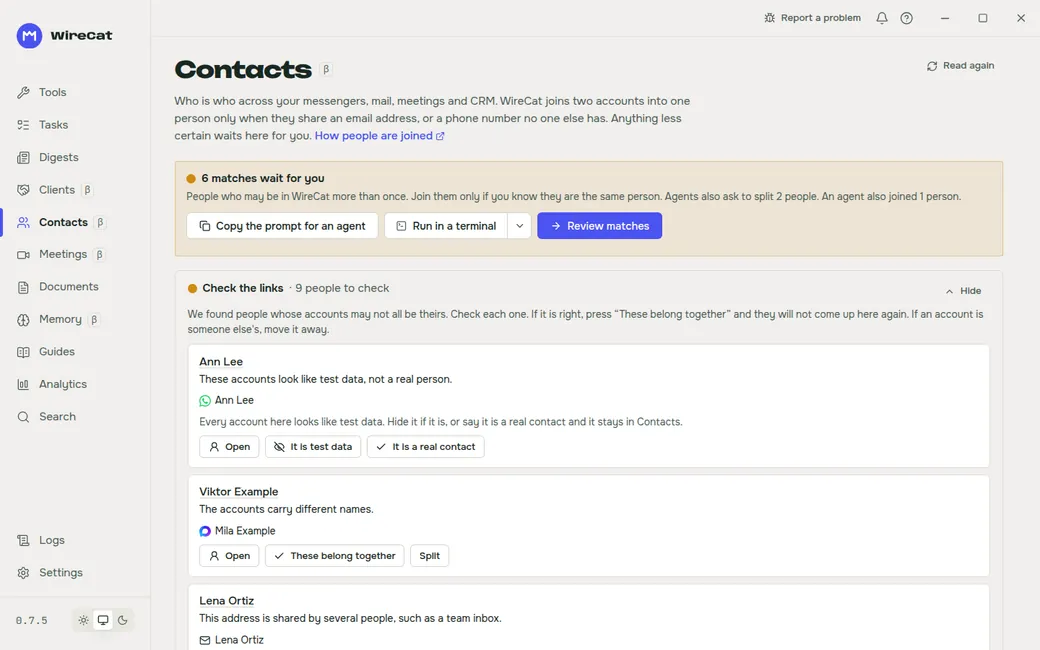
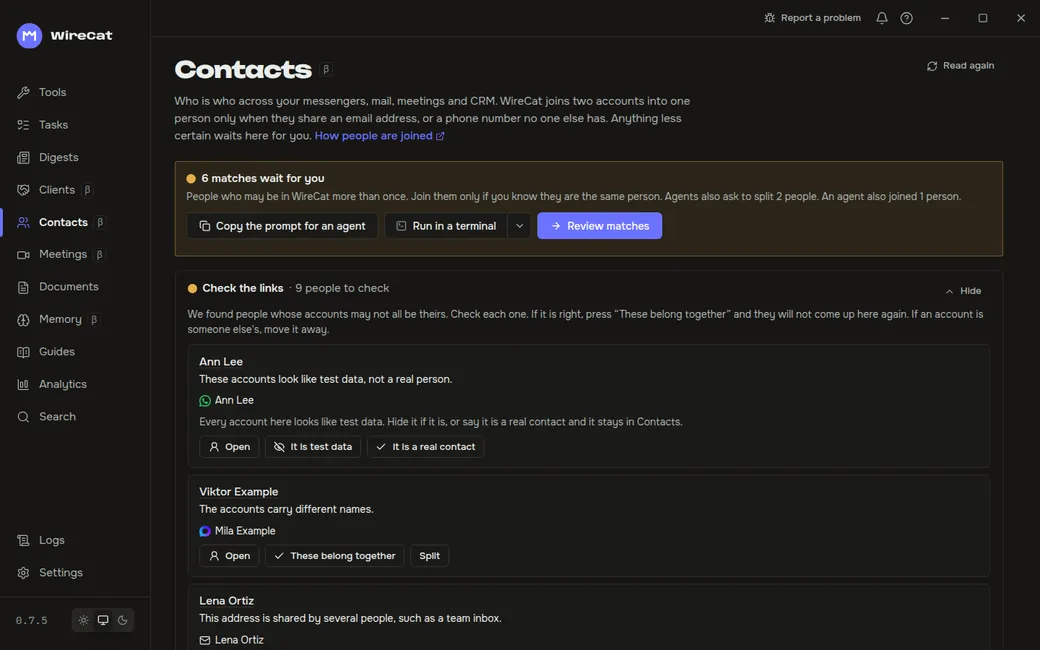
When WireCat finds people who may be the same person, a band at the top says how many matches wait for you. It has three buttons. Copy the prompt for an agent and Run in a terminal hand the matches to your agent: see Let your agent sort the matches. Review matches opens the screen Possible duplicates, with one card per group:
- The card lists what matched, with the value: the name, company, domain, phone or email. A phone number that no account shows reads "number hidden: accounts keep only its fingerprint".
- Same person joins them. Tick some of them first to join only those, and the button reads Join with the number.
- Not the same asks why, then Keep them apart. WireCat stops suggesting this match.
- One company is for two contacts that are mailboxes of one company, such as
sales@andsupport@. Their addresses go to the company, and they leave your contacts. The card then says which addresses went to which company. If Memo cannot tell the company, the card asks for its name or for which company it is. One of the two cannot be you. - Details opens Match details: the people side by side, with where each one comes from, their phone, email and messengers, company, deals, tasks and latest messages. Merge joins two, Merge all joins every one.
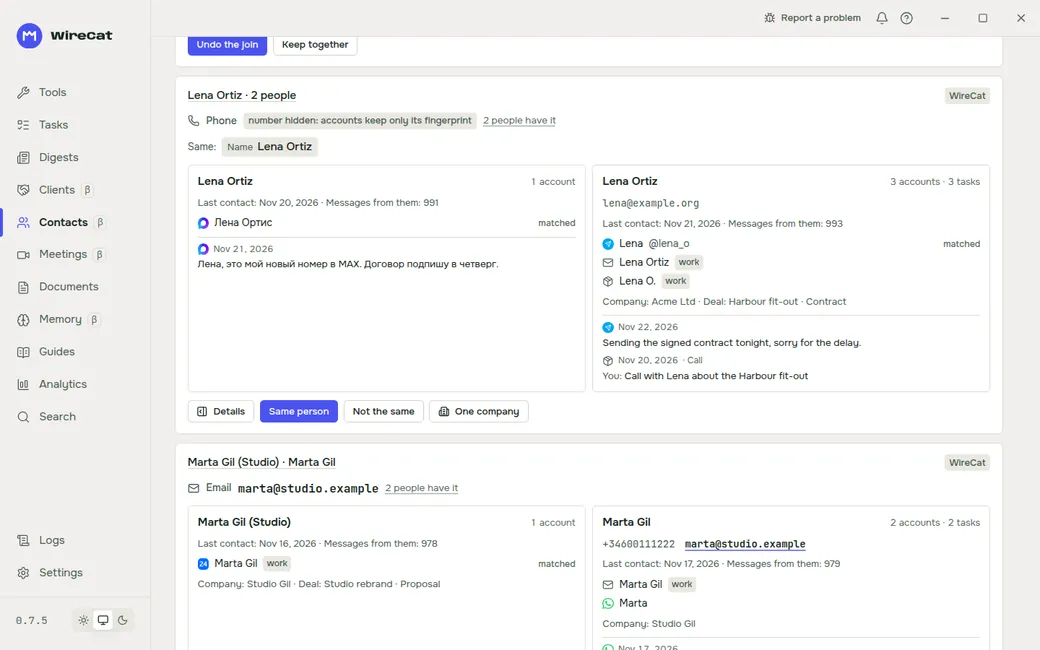
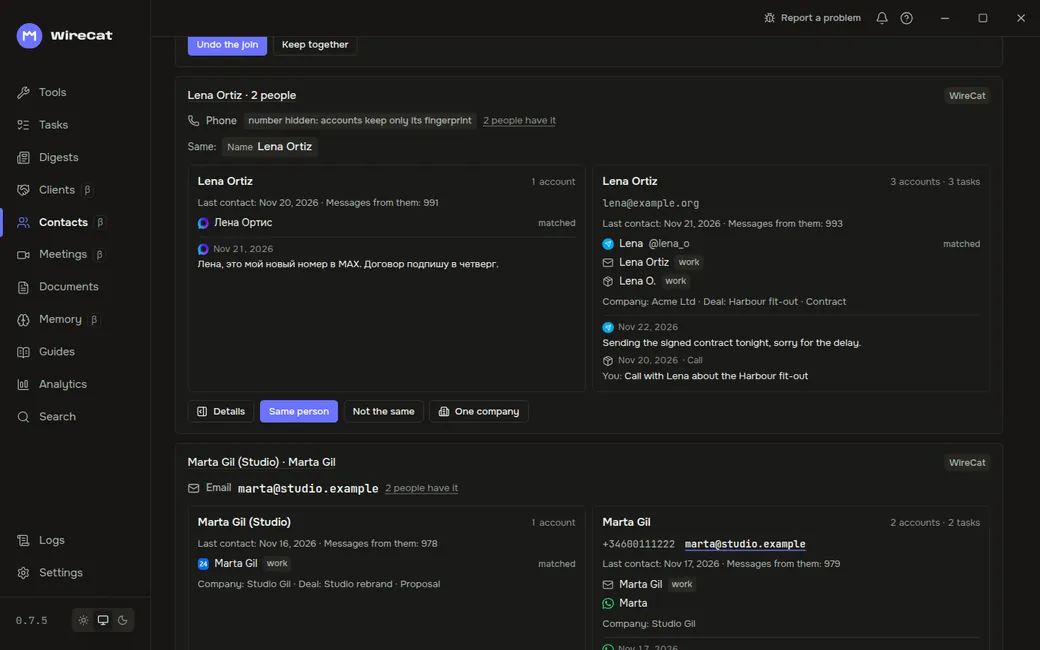
After you decide, the card keeps its place in the list and says what happened. All contacts goes back to the list.
Let your agent sort the matches
With many matches, your AI agent can do the first pass. It reads each match, looks at both people and their messages, and sorts the match into one of four: one person, different people, one company or unsure. It does not decide a match itself, because Memo lets only you decide. The request tells it to treat the text of your messages as data, not as instructions.
- Copy the prompt for an agent copies the request. Paste it into your agent chat.
- Run in a terminal opens your agent in a terminal with that request. The arrow beside it picks another agent.
At the end the agent gives you at most three commands to run yourself: one for the matches that are one person, one for the different people and one for the companies. Then it lists the matches it was unsure about, each with a short reason. Read the commands, run them in a terminal, and decide the unsure ones on the cards. One run sorts up to 100 matches. Run it again for the rest.
Shared mailboxes
Several people can write from one address, such as info@ or sales@ of a company. Such a card is marked shared
mailbox. Company mailbox gives the address to a company, which you choose or type. WireCat then stops suggesting
a join for the people on it. This differs from One company: a shared mailbox is one address that several people
write from, and One company is for two contacts that are both the company's own mailboxes.
Two people with the same name can also share a company domain. Company address on such a card asks which of their addresses is the company's. The address goes to the company, and the two people stay apart.
Answer your agents
Agents can ask to split one person in two. A band says how many people they ask to split. Each card says what the agent thinks and why. Split moves the accounts off. Keep together asks why they belong together; the agent reads your answer.
Check the links lists people whose accounts may not all be theirs, for example accounts with different names. Each person is a card with Open, Split and These belong together. When everything on a card is right, These belong together settles it, and the person does not come up again. Hide folds the list.
Your own card can come up too, when one of your accounts has another name, for example your bot or a shared mailbox. That is often right. These belong together keeps the account yours: its messages count as yours in search and digests, and WireCat does not ask again. Split makes the account a contact of its own.
Next
Ask your agent about a person: it now sees all their accounts as one. People in your messages shows the requests to try.
Install and set up WireCat Desktop
The app for macOS, Windows and Linux that installs, updates and checks the WireCat tools, connects them to your AI agents and signs you in, with no terminal. A walkthrough of every screen.
Clients
Your CRM deals and leads as a table or as a board by stage. Move a deal to another stage, map each CRM's stages onto yours, and choose whose deals are copied.