AI model and better search
Set one AI model and key for WireCat Desktop, choose the agent for digests and the mail agent, keep every model call on this computer, and turn on the two search helpers that send data only after you agree.
Some WireCat features need an AI model: reading the text in a picture, suggesting facts from a document, writing digests and two optional search helpers. In Settings you choose which model or agent does each job, and you see what each one sends out of your computer. When you are done, the features work with the model you picked, and you know where your data goes. Everything here is off until you turn it on. Without a model, your own AI agent does this work when you ask it.
On this page:
- AI model
- Agent for background jobs
- Only this computer
- Reading pictures
- Reading for facts
- Better search
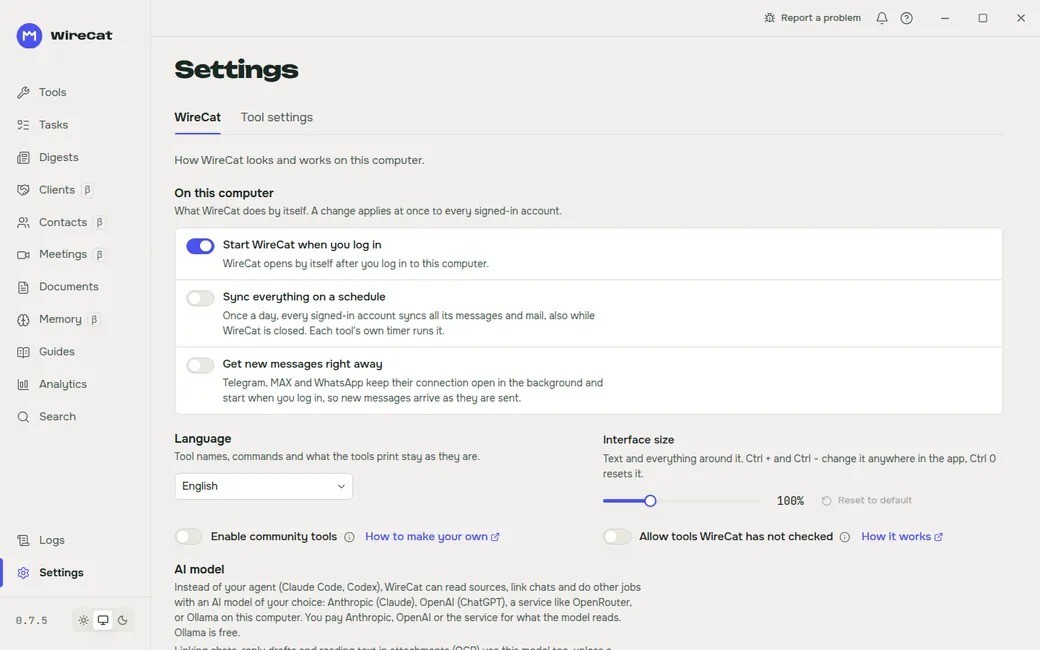
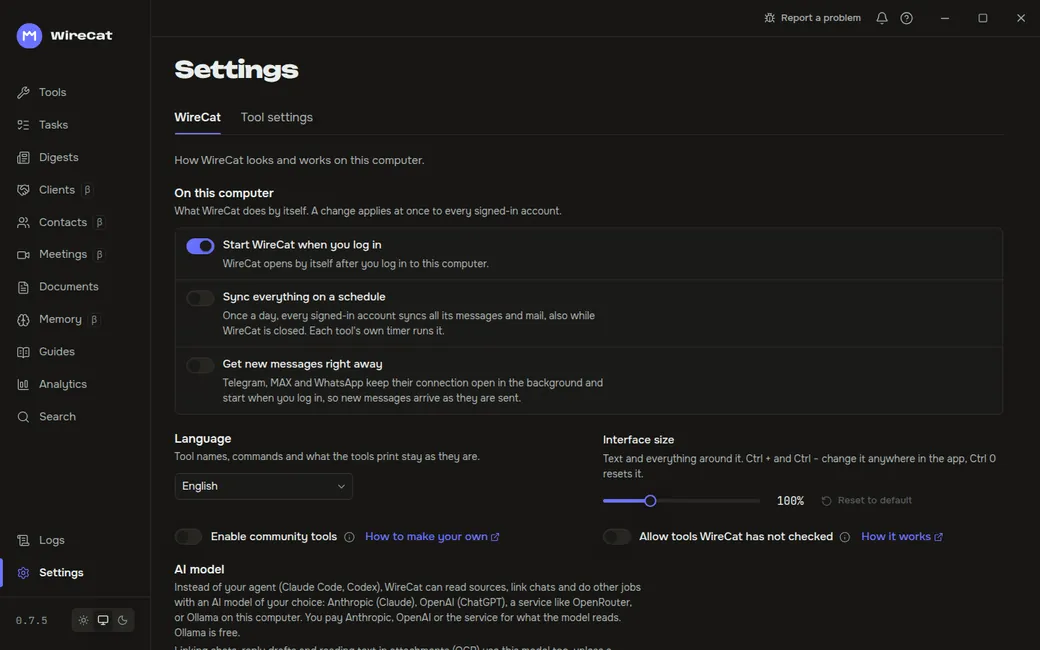
Set the AI model
Open Settings. The AI model section is below the tool switches.
- Choose the provider: Anthropic (Claude), OpenAI or compatible, or Ollama on this computer, which is in beta. No model (use your agent) turns it off. With OpenAI or compatible, Address (base URL) is where WireCat sends its requests. Leave it empty for OpenAI itself, or see Keep it on your computer for other addresses.
- Choose the Model. Ollama and OpenRouter list their models. Anthropic and OpenAI show their list only with your key, so type the model's name as the provider writes it.
- Enter the API key. It is kept in your system's password store and never shown again. Where there is no password store, it is kept in a file only your user can read. The section says which. A model on this computer usually needs no key.
- Save, then click Check. It sends one short request, billed by your provider, and says in plain words whether it works, with the model and how fast it answered, or what to fix.
Linking chats, reply drafts and reading the text in attachments use this model too, unless a messenger profile sets a model of its own for them.
Read pictures with this model lets Add to memory send pictures to this model to read their text. The note under it says what reads pictures now. A model on your computer is usually slower and less accurate. A change applies only to pictures you add after it.
Keep it on your computer
Address (base URL) takes the address of any server that speaks the OpenAI interface. That can be a hosted service,
such as OpenRouter at https://openrouter.ai/api/v1, or a model you run yourself. Run a model on this computer with a
server that speaks the OpenAI interface, and enter its address, for example http://localhost:8080/v1. Then the
pictures and texts the model reads never leave your computer. A model on your company's server keeps them inside the
company. The address must start with https://. Plain http:// works only for a server on this computer. Your key
is sent only to this address.
Ollama on this computer also keeps everything on your computer, and lists the models you downloaded. Ollama must
run at its usual address, 127.0.0.1:11434. Run WireCat on local models covers every feature.
Agent for background jobs
The mail agent and the digests run on a schedule, without you. A coding agent on this computer does that work, and Agent for background jobs chooses which one. Pick an agent and click Use this agent.
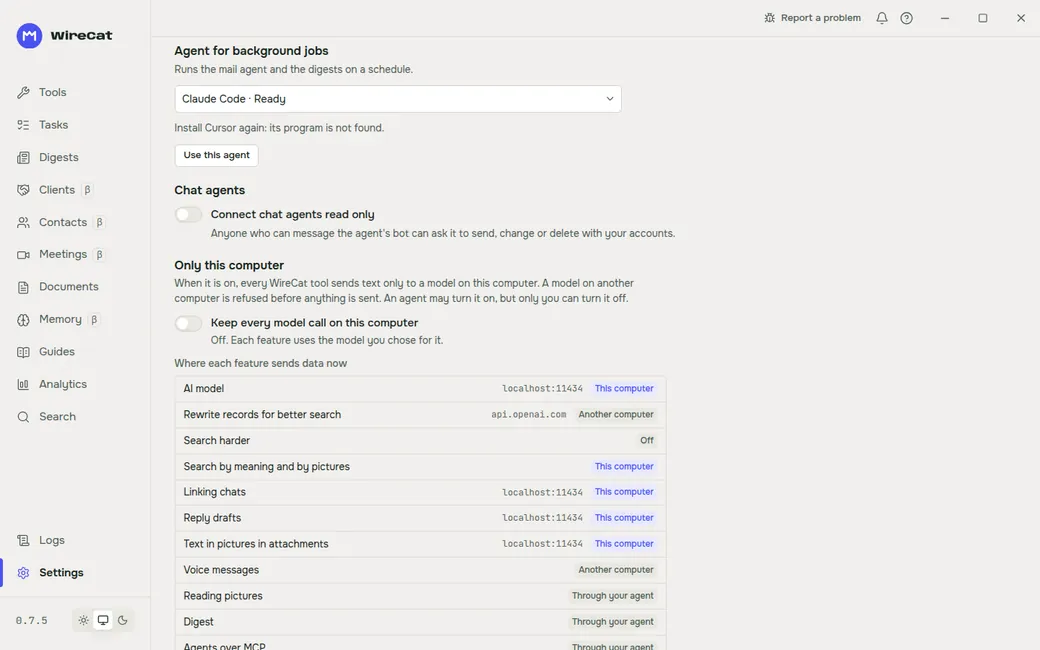
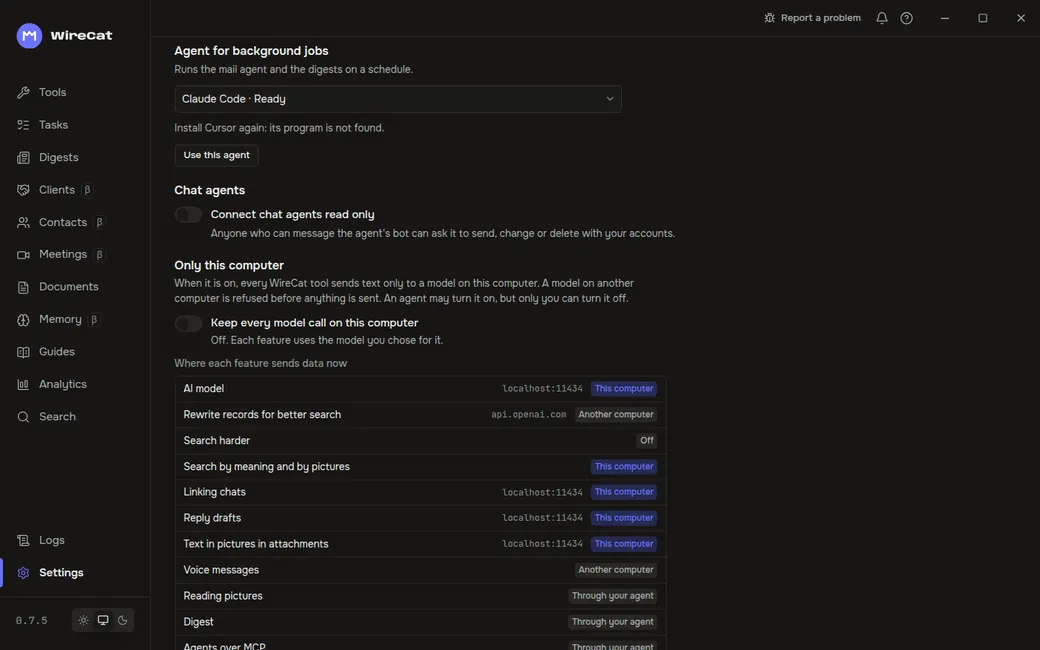
- Claude Code, Gemini CLI and OpenCode are held to WireCat's commands while they run a job, and show Ready when they are installed.
- Codex shows Ready after a warning. Memo cannot limit the commands Codex runs, and a job reads your mail and messages. Choose it, and a dialog asks Run background jobs in Codex? first. You are asked once.
- Other agents are greyed, with the reason, such as Not installed or Its commands cannot be limited.
- With several agents ready, nothing runs until you choose. With only one ready, background jobs run in it.
Each job sends what it reads to the model of the agent that runs it. A digest can also have its own agent: see Choose the agent. When a run fails because the agent has no credit, reached its usage limit or is not signed in, the mail agent and the digest name the agent and offer Switch to another one that is ready.
Only this computer
Keep every model call on this computer makes every WireCat tool send text only to a model on this computer. A model on another computer is refused before anything is sent. An agent may turn it on, but only you can turn it off.
Where each feature sends data now lists each feature, such as the AI model, search helpers, linking chats, voice messages and the digest, with This computer, Another computer, Through your agent or Off. While the switch is on, a feature that points elsewhere is marked Refused and sends nothing until you give it a model on this computer.
What runs through your agent (the digest, reading pictures, agents over MCP) is outside WireCat. Its data stays here only if your agent runs a model on this computer.
Reading pictures
WireCat reads no picture by itself. With Reading pictures set to On request, your coding agent reads the text of one picture you choose, and search finds it from then on. Choose Agent that reads, Claude Code or Codex, and optionally a Model, then click Turn on. Only you can turn it on.
The picture you ask to read goes to that agent and from there to its provider, unless the agent runs a model on this computer. Only this computer does not stop it. Never keeps every picture here.
Reading for facts
Reading for facts chooses who reads a source when you ask Add to memory to suggest facts. AI model (recommended) uses the model and key above. Each reader says whether the text leaves this computer. Choose a reader and click Use this reader.
Better search
Two helpers can make search find more. Both are off by default, and both send data to the model you choose, so each asks first. They live in Memo's details: on the Tools page, click Manage on Memo's row.
Before turning them on, set up your notes on the same panel.
Set up your notes
Bring your Obsidian vault or any folder of Markdown files into search. Your files stay as they are: Memo keeps a searchable copy in its own store. The card Set up your notes has three steps.
- Choose your notes folders. Under Obsidian vaults on this computer you see the vaults Obsidian already
knows. Click Connect next to one. Connect an Obsidian vault… opens the folder window for a vault that is
not listed, and Choose a folder… for any other folder. WireCat sees whether a folder belongs to a vault, so
tags and
[[links]]read the way Obsidian reads them, and a#wordin a plain Markdown folder stays a word. Each folder shows Obsidian or Markdown. The vault list shows only vaults Memo does not read yet, and it is hidden when there are none. A folder you choose that holds vaults one or two levels down gets them offered one by one, or you add it as plain Markdown. A folder added before Desktop chose the format keeps Obsidian until you add it again here. An up-to-date Memo then reads its notes again in the new format. - Read your notes. Click Read my notes. A few hundred notes take under a minute.
- Search by meaning (optional). It offers the local search models. The recommended one is labelled Best local model. It runs on your computer and sends nothing.
Rewrite records for better search
Your notes, documents and emails get other words added, so a question asked in other words still finds them. Click Turn on and choose a model: a hosted one, or Another model at an address for a server on this computer or another OpenAI-compatible service. What turning it on sends shows which records go, where, the price, and that turning it off deletes the added text. You agree with the button that names the number of records and the provider. After that, each sync sends new records too. Turn off asks first, then deletes the added text.
Search harder
A model reorders the top results of one search, when you ask for it. Click Allow. What searching harder sends shows the provider, the model and the price, and that only your question and its first results go, only when you press the button. A search without it sends nothing.
Then, on the Search page, a Memo search with two or more results shows Search harder. Press it to reorder that one search.
Next
Add a note or a picture to memory and ask your agent about it, or set up a digest that your chosen agent writes.
Memory
Decide what your agents may take as true about you and the people around you, see where each fact came from, and add a note, a link, a file or a picture to memory yourself.
Local models
Step by step, keep your messages, mail, notes and pictures away from cloud AI services. Set up a model on your computer, point each WireCat feature and your coding agent at it, and see what still goes out.