Search logs in WireCat Desktop
Find why a tool failed, how often it happens and which command, profile or error it involves, with filters, groups and the record of each run.
A tool failed, or an agent says a command did not work, and you want to know why. The Logs page in WireCat Desktop shows what each command-line tool recorded about its own runs. A run is one start of a tool, such as tg personal messages send, from start to exit. Here you find how often a failure happens and which command, profile, agent or error it involves. Then you can open one run and copy its record for a bug report or for your agent.
On this page: Why most runs are failures · Search runs · Facets · Group runs · Open a run · Logs in a terminal · Privacy
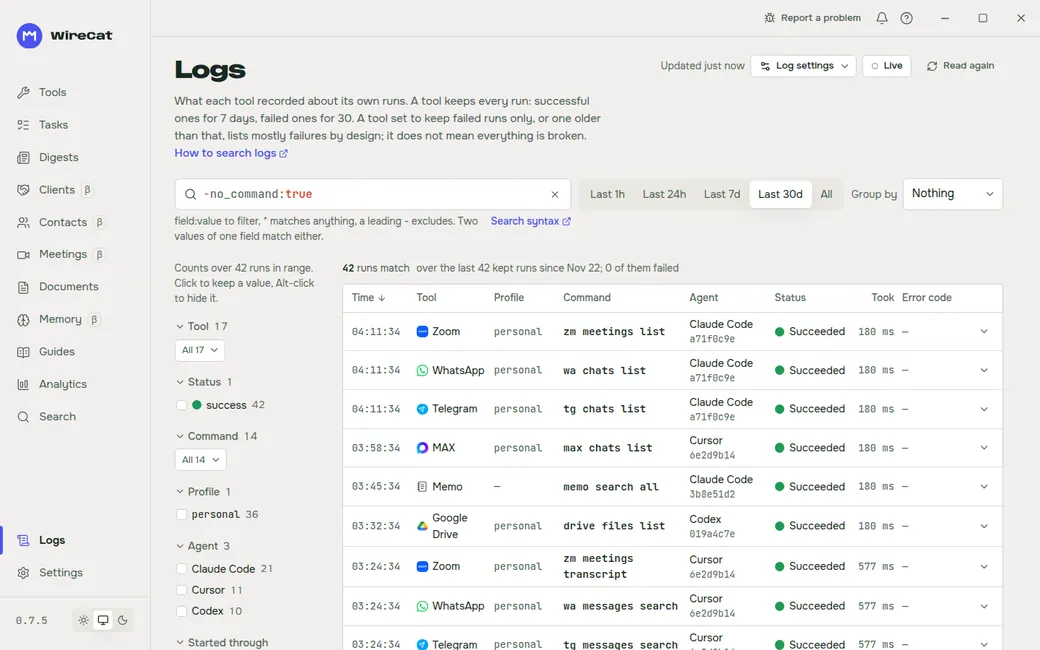
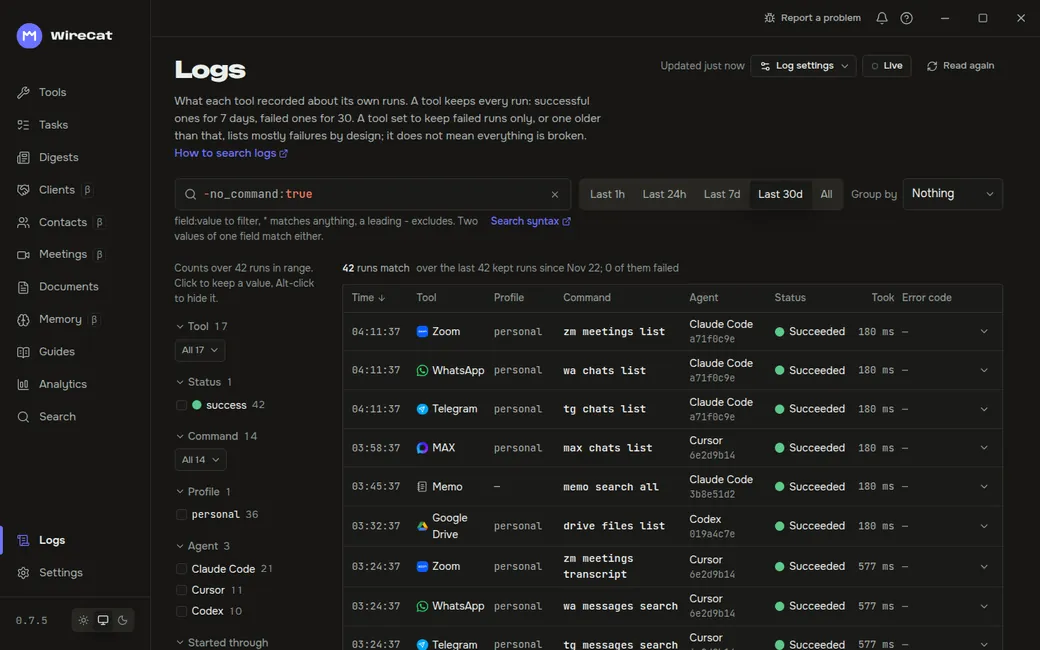
What the page shows
Every WireCat tool keeps run logs: Telegram (tg), MAX (max), WhatsApp (wa), Zoom (zm), Google Drive (drive), Memo (memo), Email (mail), Google Calendar (gcal) and Bitrix24 (b24). The app reads them with each tool's own runs list and runs show commands. An older Zoom, Google Drive or Memo has no run logs; update it to see them. The row above the search shows each tool and how many runs the app read from it. The app reads the newest 500 runs of each tool; Load older reads the next 500.
Why most runs are failures
A tool keeps every run: successful runs for 7 days, failed runs for 30. A tool set to keep only failed runs, or an older tool version, lists mostly failures. This is expected. It does not mean that everything is broken.
To keep every run of Telegram, MAX, WhatsApp or Email, open Log settings at the top of the Logs page and choose Every run for the tool, or set it yourself:
tg config set record true --defaultsThis applies to every profile of that tool. For MAX or WhatsApp, write max or wa instead of tg. The page does not offer the switch for Zoom, Google Drive and Memo. Set it yourself:
- Zoom:
zm config set record true. - Google Drive:
drive personal config set record true --defaults. Write any of your profiles in place ofpersonal; with--defaultsthe setting applies to all of them. - Memo: add
"record": trueto memo's config file.memo doctorshows where the file is.
A tool deletes runs that are older than keep_runs_for_days days. The default is 30 days. Configuration explains where these settings are stored and how to change them.
Search runs
Type in the search box above the list. A search has terms that are separated by spaces. A run must match every term.
The search box starts with -no_command:true. It hides runs that started without a command, usually a typo or a missing profile. To see them, remove the term or click Show them above the list.
| Write | Meaning | Example |
|---|---|---|
field:value | The field has this value. The full value must match, upper or lower case does not matter. | status:failed |
field:"two words" | Put quotes around a value that has spaces. | cli_command:"tg messages send" |
* | Any characters, also none. Use it to match part of a value. | cli_command:"tg messages*" |
- before a term | Exclude runs that match the term. | -profile:work |
field:>N, <, >=, <= | Compare a number. | duration_ms:>1000 |
a.b.c:value | A field inside another field. A list matches when one of its items matches. | partial.failures.stage:upload |
a word without field: | Text that is part of the run's main fields, such as the command, profile, status or error codes. | timeout |
Two values of the same field match either value: tool:tg tool:max shows the runs of both tools. Different fields must all match: tool:tg status:failed shows only the failed tg runs. An excluded term or a number comparison always applies on its own. For example, duration_ms:>1000 duration_ms:<5000 finds runs from one to five seconds long.
The search box suggests field names and the values that the loaded runs have. If the app cannot read a term, it underlines the term and tells you why: a quote that is not closed, a field without a value, a comparison with something that is not a number, or a field name that no loaded run has.
Fields
A run can have more fields. Open a run to see them all: every field in its record can be searched by its name or its path. A cli_command that is only the tool name, such as max, means that the tool started without a command it knows. Usually this is a typo or a missing profile.
Example searches
| To find | Search |
|---|---|
| Failed runs of one command | status:failed cli_command:"tg messages send" |
| Rate limits in the last day | code:rate_limited, then choose Last 24h |
| Slow runs | duration_ms:>10000 |
| The runs of one profile | profile:work |
| Failures, except timeouts | status:failed -error_code:timeout |
| Partial runs where an upload failed | status:partial partial.failures.stage:upload |
How this differs from message search
Message search uses Lucene syntax. The Logs search is simpler:
- There are no
AND,OR,NOTwords and no parentheses. A space means "and", the same field twice means "either", and-excludes. field:valuemust match the full value. Add*to match part of it. Words without a field match part of a value.*is the only wildcard. There is no?, no fuzzy search and no ranges in brackets.- There is no date field to compare. Use the time range buttons instead.
Filter with facets
The column on the left shows facets: the values of fields such as Tool, Status, Command, Profile, Agent, Started through and Error code, with the number of runs for each. Click a value to show only those runs, and click it again to remove the filter. Alt-click a value, or use its minus button, to hide those runs. Each click adds a term to the search box, so you can see and edit the search. The counts include all the other terms of the search. Thus you can still choose a second value of the same facet.
On a narrow window, open the facets with the Facets button.
Group runs
Choose a field in Group by to see one row for each value: how many runs have it, how many of them failed and when the last one started. You can also group from a facet with its Group by this field button, or from a value in a run record with its Group by button. Click a group row to show only those runs.
Choose a time range
Choose Last 1h, Last 24h, Last 7d, Last 30d or All. The range applies to the runs that the app loaded. If you do not see an older run, use Load older for that tool.
Open a run
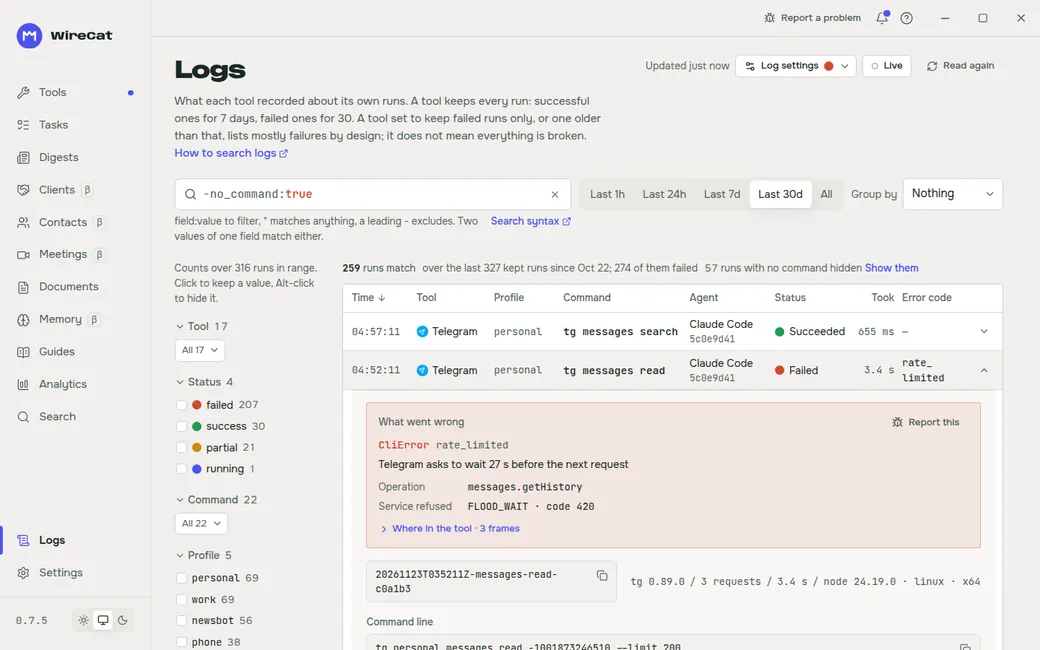
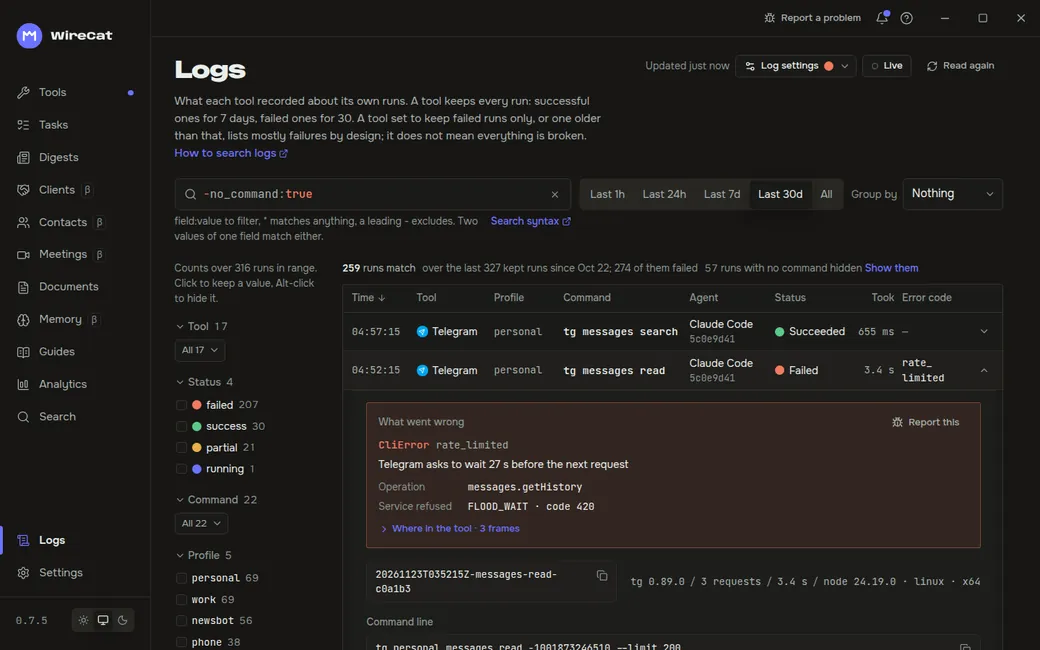
Click a run to open it. You see:
- Events: the requests that the tool made to the service and the important steps of the run, with the time, the result and how long each one took. Click an event to see all its fields.
- Run record: everything the tool kept about the run, as a tree that you can expand. Most values have buttons to filter by it, exclude it, group by its field and copy it.
- Copy JSON: copies the full run record. Attach it to a bug report or give it to your agent.
Copy run id copies the run's identifier. You can use it with the tool's runs show command.
Logs in a terminal
The tool's runs commands read the same runs. They help when the app does not open, or when you want to give the
output to an agent. Open terminal on the tool's card opens a terminal where the tool is ready to run.
tg personal runs list status:failed --limit 10
tg personal runs show 20261025T100000Z-sync-a1b2c3 --problems
tg personal runs path 20261025T100000Z-sync-a1b2c3
runs listshows the latest runs, newest first. The search after it is the same as on this page, and--limitand--pagepage through the list.runs show <id>shows one run with all its steps. With--problems, only the errors, warnings and crashes.runs path <id>prints the folder that holds the run's files. Open it, or attach it to a report.
Put in your own tool and profile, for example b24 Anna runs list or mail work runs list. Zoom and Memo have no
profile: zm runs list, memo runs list. What to do with the error you find is on
Errors and how to fix them.
Privacy
Run records never contain message text, names of people, chat titles or login secrets such as passwords and session keys. The Telegram diagnostics guide lists what a tool records and what it never records.
Before the app shows a run, it also masks personal data: values of fields such as tokens, passwords, phone numbers, email addresses, account names and user IDs become •••. In text, the app replaces email addresses with [email], phone numbers with [number] and bot tokens with [bot token]. The same masking applies to what you copy.
A bug report that you send from the app always attaches recent error logs: the last 20 failed runs of each installed tool, masked in the same way. WireCat's server masks them again. They are kept privately on WireCat's server for 90 days, then deleted, and they are never published. Otherwise, the logs never leave your computer. The privacy policy explains what a bug report sends.
Add your own tool
Install a tool WireCat does not make, from the community list or by its npm name, read the review before it installs, and learn what a tool needs so WireCat can add it.
Errors and how to fix them
What to do when WireCat Desktop shows an error: understand what happened, fix it yourself or with your AI agent, and write to us if that does not work.