Install and set up WireCat Desktop
The app for macOS, Windows and Linux that installs, updates and checks the WireCat tools, connects them to your AI agents and signs you in, with no terminal. A walkthrough of every screen.
You want your AI agent to work with your messages, meetings, documents and notes, but you do not want to install and maintain command-line tools by hand. WireCat Desktop does that for you. It installs the WireCat tools, gives your AI agents the instructions to use them, opens each tool's sign-in and shows what the tools keep on your computer. Read from the top to install the app and finish its setup in a few minutes. After that, each section explains one page of the window. The app is optional: every tool still installs and works from a terminal without it.
On this page:
- Download and install
- The first start
- Sign in to a tool
- Pages of the app
- Settings
- Updates and removal
- Common issues
Download and install
Download WireCat Desktop for macOS (Apple silicon and Intel), Windows (64-bit) or Linux (AppImage, .deb or .rpm). The download page picks the file for your computer. The macOS app is signed and checked by Apple. The Windows installer is signed with an Open Source Developer certificate from Certum, and Windows names Open Source Developer Viacheslav Ptsarev as its publisher. Windows may still ask you to confirm the first start; the first-start steps show where to click.
The app itself needs nothing else. The tools run on Node.js 22.16 or later within 22.x, or 24 or later, with npm. If Node.js is missing, too old, or npm needs administrator rights to install, the app offers to set up its own copy of Node.js in your user folder. It does not need administrator rights for that, and your existing Node.js stays as it is.
The first start
The first start opens a setup in the app's window. Its steps are listed at the left: Welcome, Your computer, Choose tools, Install, Agents, Sign in and Done. Continue goes to the next step and Back to the one before. Set up later closes the setup; Finish setup in the sidebar opens it again at the step you reached.
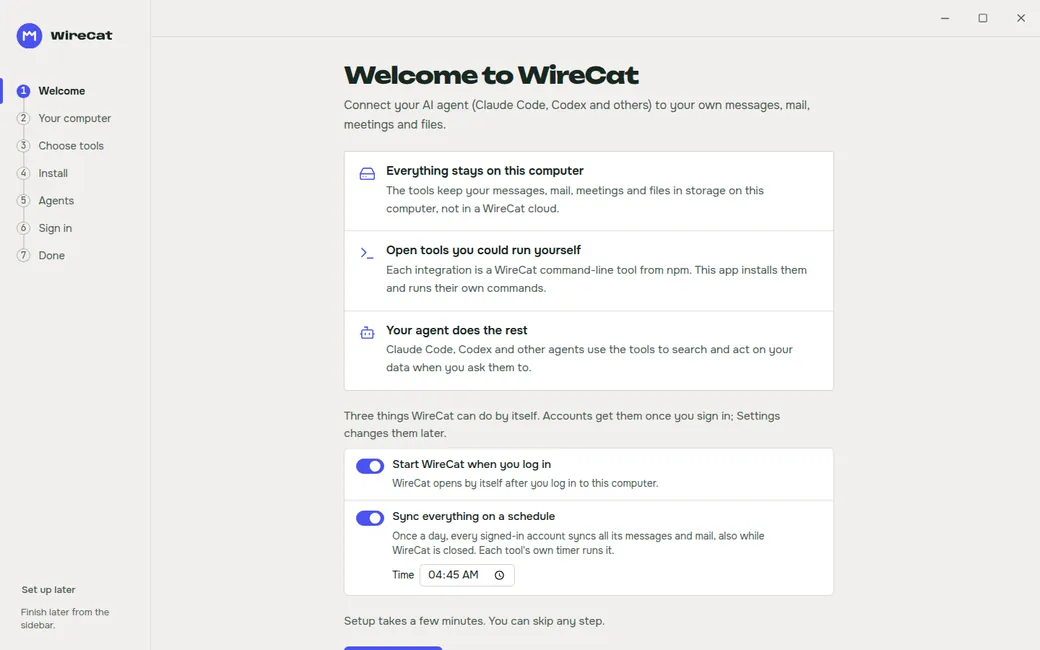
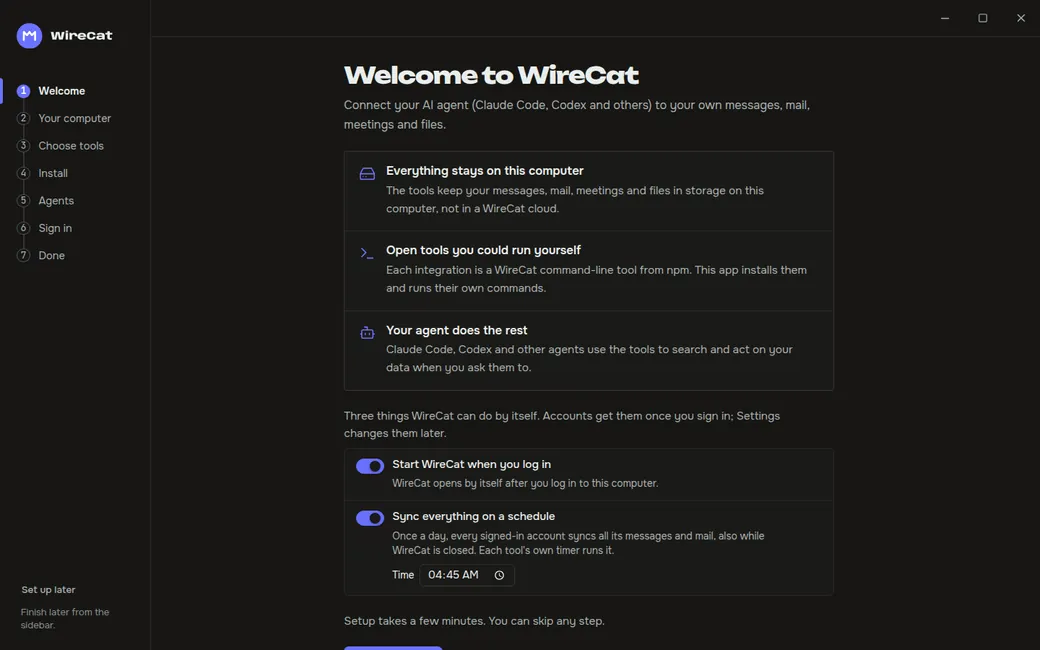
- Welcome: a short note on what WireCat does. The tools keep your messages, mail, meetings and files in storage on this computer, not in a WireCat cloud. Each tool is an open command-line tool from npm; the app installs it and runs its own commands. Get started begins.
- Your computer: the app checks the system, Node.js and npm. Check again repeats the check after you fix something.
- Choose tools: pick the services your agent should reach: Telegram, MAX, WhatsApp, Zoom, Google Drive, Google Calendar, Memo, Email, Bitrix24, HubSpot or WordPress. You can add or remove tools later on the Tools page.
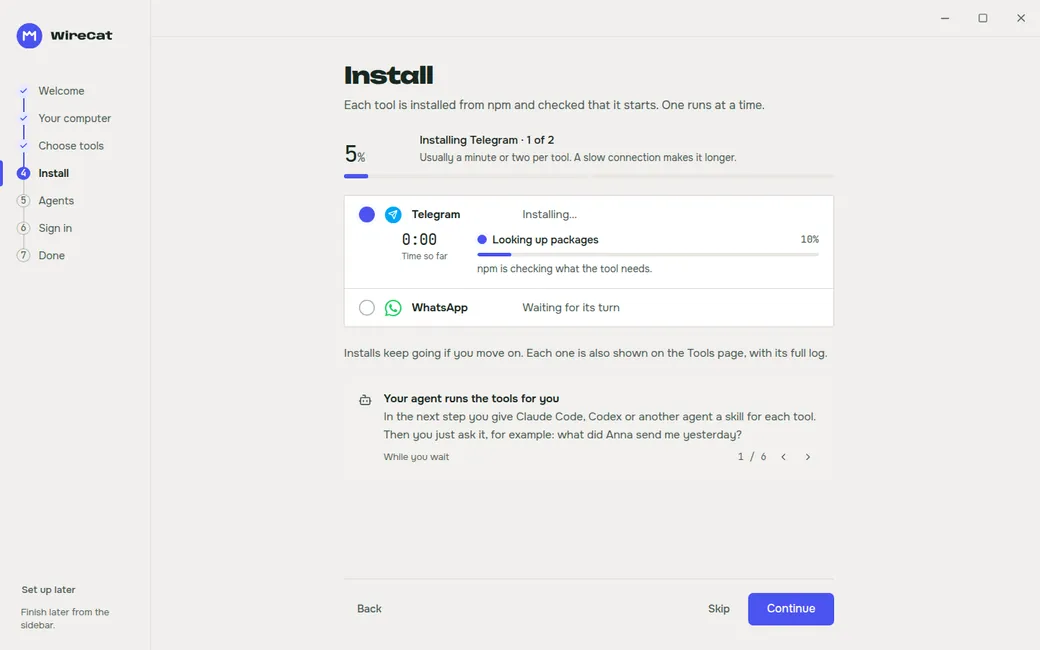
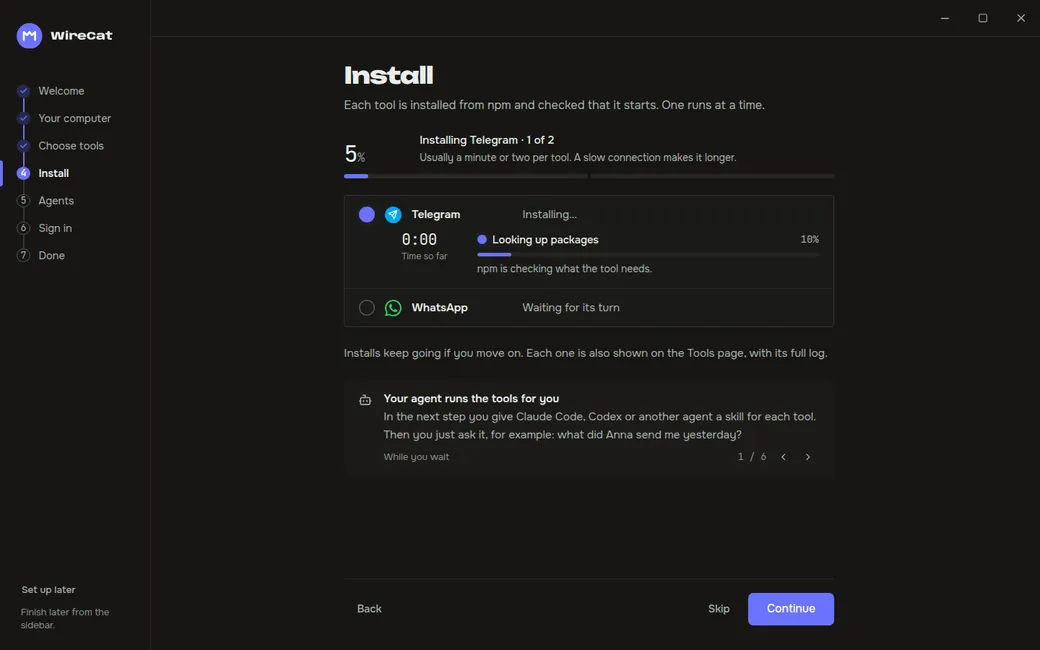
- Install: each tool is installed from npm and checked that it starts. One install runs at a time. A bar shows the progress: looking up packages, downloading, unpacking, setting up and checking that the tool starts, with the time so far and an estimate of what is left. A tool usually takes a minute or two, longer on a slow connection. While you wait, short tips show what each tool is for. The installs keep going if you move to the next step, and each one is also shown on the Tools page with its full log. Each install first runs the same storage check as the Tools page, and a warning waits in the tool's row for your answer.
- Agents: the app gives each AI agent it finds the tool's skill: a short guide to the tool's commands. It knows where Claude Code, Codex, Cursor, Gemini CLI, OpenCode, Hermes Agent and OpenClaw read skills. With a skill you ask your agent in plain words, for example "What did Anna send me yesterday?", and the agent knows which tool can answer.
- Sign in: signing in connects a tool to your account, so your agent can reach it. See Sign in to a tool. Add a bot is here too, for Telegram, MAX and WhatsApp. Memo needs no sign-in.
- Done: each tool you set up gets a folded card, "What you can do with" the tool. Open it for the next steps, each of which opens the right place in the app: Add an account (or Add another account), Start a sync, Keep it running in the background, Give your agents its skill, Connect ChatGPT or Claude in the browser, See what it ran and Read its documentation. A card lists only what its tool supports. Show me around starts a short tour of the window, and Open Tools goes to the Tools page.
Terminals and AI apps that were already open see the new tools only after you restart them.
The question mark at the top (Help) has WireCat documentation, Take the tour, a short tour of the window, Show the welcome again, Privacy, Check for updates and About WireCat. The version number at the bottom left opens the same menu.
Sign in to a tool
Signing in grants this computer access to one of your accounts. Every tool signs in the same way, in a guided window:
- Before you start says what to have at hand, such as your phone or a browser signed in to the service.
- The steps are listed on the left, with Back under each step after the first. Every link has a copy button beside it.
- A failure says what happened, the likely cause and one fix, such as Try again or Show a new code. The tool's own text is under Details.
The ways in, by tool:
| Tool | How it signs in |
|---|---|
| Telegram | A QR code or your phone number |
| MAX | A QR code, or a token copied from the web version of MAX |
| A QR code, or your phone number and a code you type on the phone | |
| Zoom | Your browser. The first time, a checklist walks you through making your own Zoom app |
| Google Drive, Google Calendar | Your browser |
| Your mail address first. Gmail signs in with Google (Sign in with Google, recommended), with no Google Cloud setup of your own. A Microsoft account opens Microsoft's sign-in. Other mail servers, and Gmail under Other ways, use an app password, a password made only for this program, with guided steps. Prepare the mailbox shows how each provider makes one | |
| Bitrix24 | An incoming webhook or a local application from your portal. See Bitrix24: a webhook or a local application |
| amoCRM, Kommo | The account's address and a long-lived token from a private integration. See amoCRM: a private integration |
| HubSpot | A service key, or the token of a private app you already have, with read scopes, pasted in the window. The window lists the scopes and where to click. See HubSpot: make a key |
| Attio | An access token that a workspace admin makes in Attio, under Workspace settings → Developers, with read access to records, object configuration and user management. See make an access token in Attio |
| Linear | A personal API key from Linear's Settings → Account → Security & access. Read is enough to copy; your agent needs Write to change issues. See make a personal API key |
| Asterisk | Where your calls are: the path of Master.csv, or the address of a MySQL or PostgreSQL call database and a read-only user's password. Then the countries of your phone lines, so a caller without a country code is linked to the right contact |
| Notion | A Notion token that you paste in the window. Then choose the pages and databases to copy. Until you choose one, Notion copies everything the token sees |
| Yandex Disk | A Yandex OAuth token, from an app you register once at oauth.yandex.ru. Then choose the folders to copy |
| WordPress | Your site's address, your user name and an application password, a password made only for this program. You make it in WordPress under Users → Profile → Application Passwords. The site must use https. See Connect WordPress |
| beeline | An API token for Beeline Cloud PBX, from the Beeline cabinet |
Where a tool has no sign-in window, Open terminal opens a terminal that runs the tool's own setup.
Bitrix24: a webhook or a local application
Bitrix24 asks for your portal's address first, such as mycompany.bitrix24.ru. Then, under How to sign in, choose
one of two ways:
- Incoming webhook is the quickest. It acts with the rights of the employee who makes it in Bitrix24.
- Local application acts with the rights of the employee who signs in, and its sign-in renews by itself. Choose it when each employee should sign in as themselves.
To sign in with a local application:
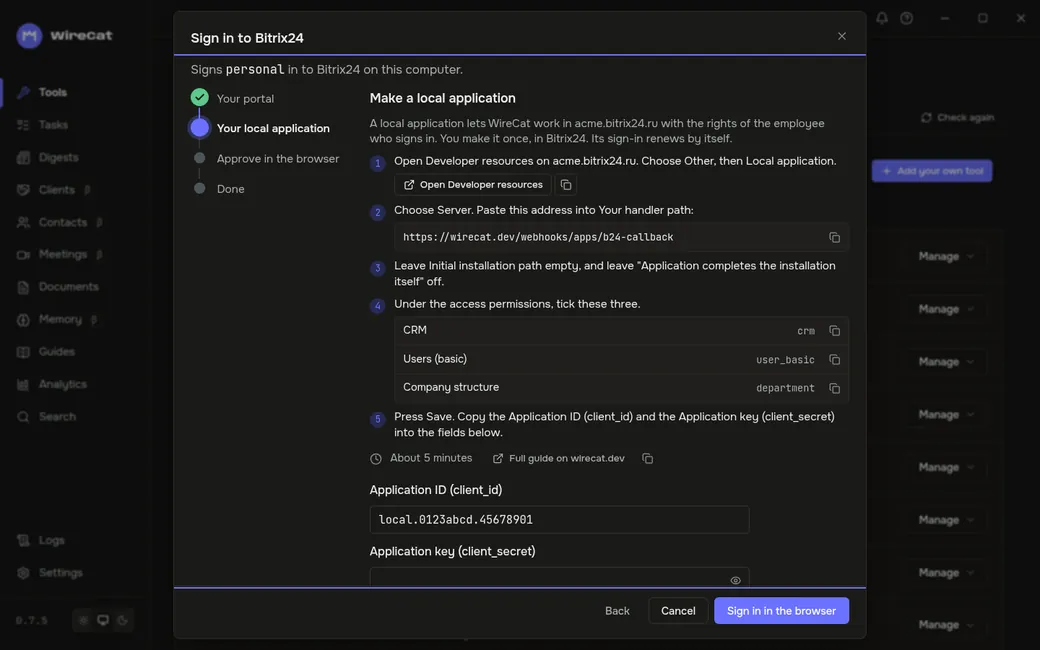
- Choose Local application. The window lists what to do in Bitrix24, with the handler address and the three permissions to copy. You make the application once, under Developer resources, then Other, then Local application. With a local application has the Bitrix24 steps in full.
- Paste the Application ID (client_id) and the Application key (client_secret) that Bitrix24 shows.
- Click Sign in in the browser. The portal's sign-in opens in the browser. Allow the application, and the browser hands the sign-in back to WireCat.
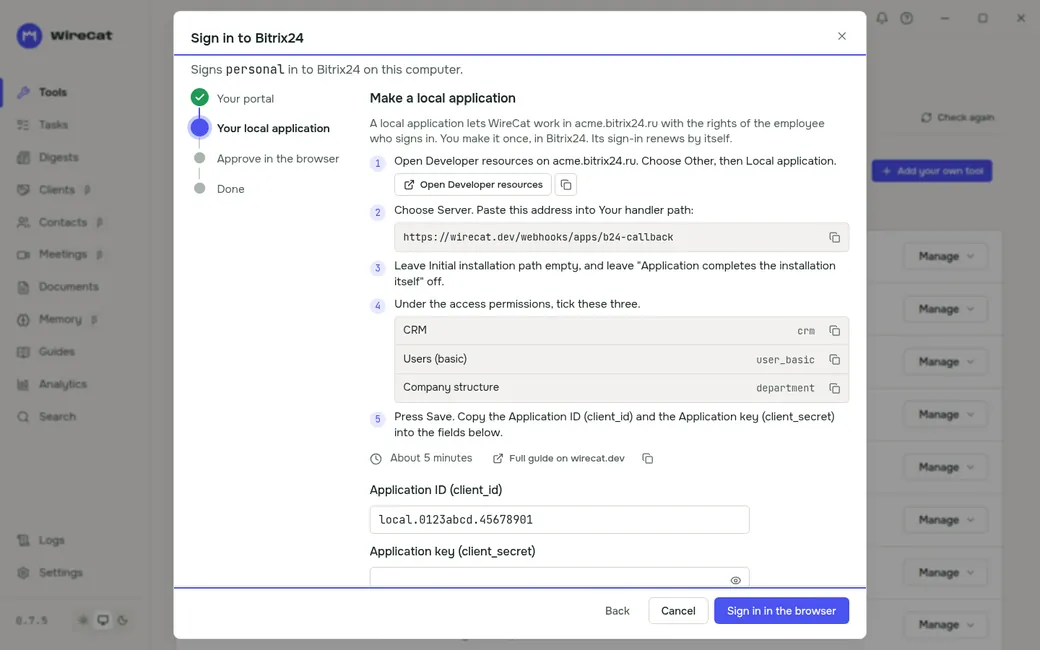
The key stays on this computer, in the system keyring. Signing in this way replaces the profile's webhook, and a new webhook replaces the application's sign-in. If the browser does not come back to WireCat, try again. Some Bitrix24 plans give applications no access: the window then says so, and the incoming webhook still works.
amoCRM: a private integration
amoCRM and Kommo let a program in only through a private integration that an account administrator makes once. The
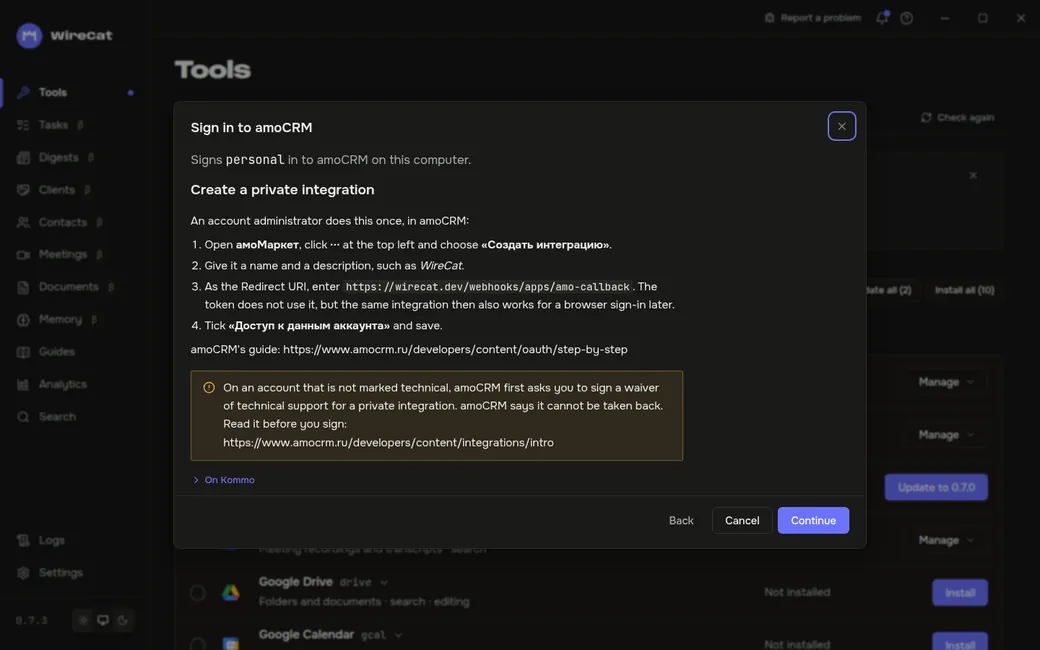
window asks for the account's address first, such as mycompany.amocrm.ru, then lists what to do in amoCRM: where to
create the integration, the redirect address to copy and the access to tick. On a Kommo account, open On Kommo.
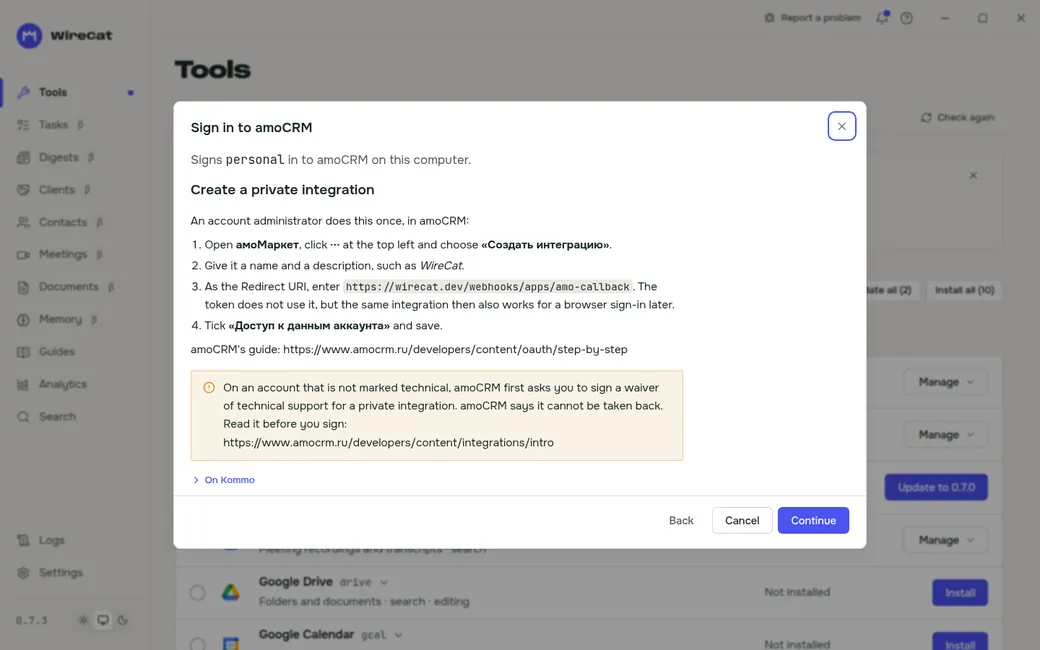
Then paste the long-lived token from the integration's «Ключи» tab. WireCat asks the account who the token belongs to and saves the address and the token only if it answers. Install and connect has the steps in full, and the browser sign-in through the same integration.
What you can do in the app
The sidebar lists the pages in this order: Tools, Tasks, Digests, Clients, Contacts, Meetings, Documents, Memory, Guides, Analytics and Search. Logs and Settings sit below, apart, because they are about the app itself. Some pages have tabs: Agents is a tab of Tools, Storage is a tab of Analytics, and Digests has a Settings tab. Tasks, Digests, Clients, Contacts, Meetings, Documents and Memory are marked beta: a β beside the name means the section is new and lightly tested.
When a page needs a tool that is missing, too old or signed out, it says so in the same words everywhere, with one button that goes to the fix, such as Install Memo or Update Memo. A button that needs a value you have not filled in stays clickable: click it, and the field says what is missing. The top of the window has Report a problem, Notifications (security fixes, updates and news from WireCat) and Help; when a new version is ready, an update button joins them. Help also holds Privacy, About WireCat and the settings of the Node.js that WireCat set up.
Tools
You use this page to install the tools and to connect each one to your account. Every tool has a status lamp. Green means installed and current, amber means an update is ready, red means installed but it does not start, and a hollow ring means not installed. Each row has one button: Install, Update to a version, Fix or Manage, and a tool that syncs also has Sync. Each service shows its logo, with its name in a tooltip.
The tools stand in groups: Built-in tools, Additional WireCat tools, Community tools and Tools WireCat has not checked. An empty group is not shown. Install all installs every built-in tool that is not installed yet, and Update all updates every installed tool that has a newer version, one after another. Each row shows its own progress. Update all leaves your own tools out, because each of their updates goes through its review. Add your own tool is under the list: see Add your own tool.
All tools keep your messages and notes in one shared storage, and a new version of a tool can move it to a newer format. Before Install or Update to, the app checks this. When another installed tool needs its own new version to keep reading the storage, the app updates that tool too, right after the one you chose, and the progress line says so. A warning appears only when that other tool has no such version yet, or when the new version cannot open your storage. Then you choose Not now or Update anyway. A tool that does not say which format it reads, such as Zoom, is left out of the check.
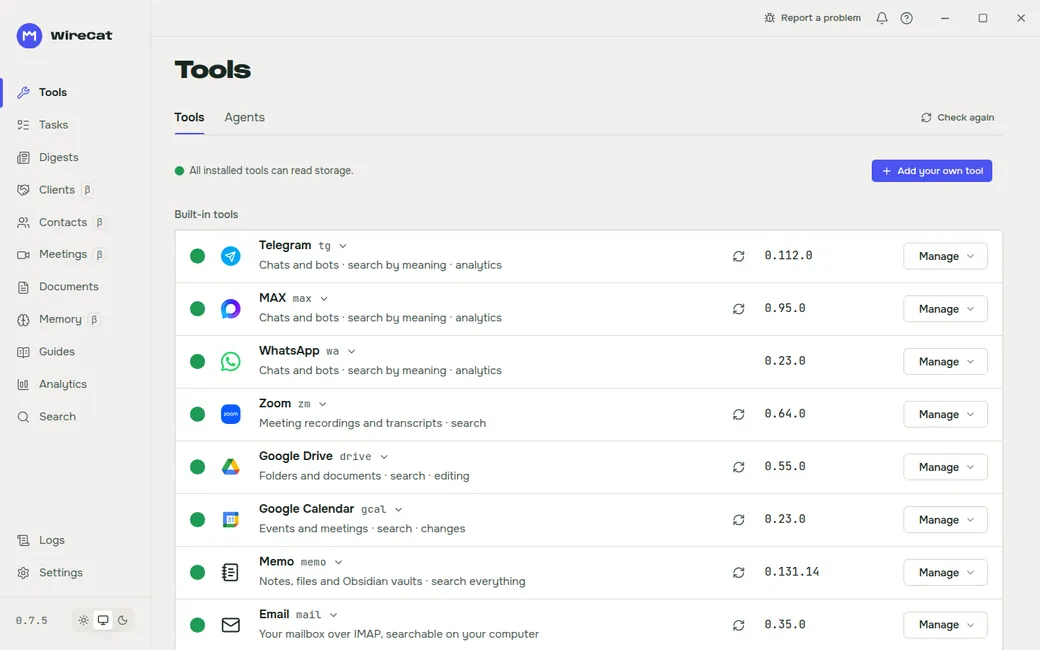
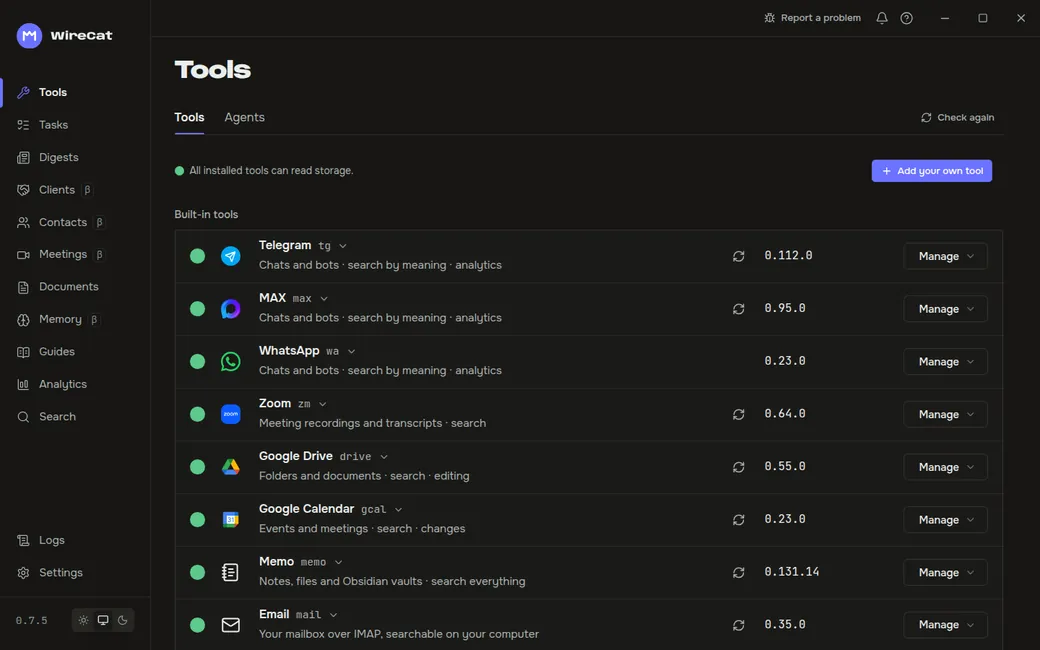
Manage opens the tool's details:
- Accounts: add an account by name, such as
personalorwork, and sign in with Sign in here or Open terminal. The app never picks an account for you. Each account is one row, the same everywhere: its status, when it last synced, and Sync now. Sync on a schedule syncs it on a timer while you are logged in, even with WireCat closed; when it is on, the button reads Change schedule. The row's menu has:- Check: runs the tool's own health check for the account and explains each problem in plain words. When the tool's settings file is broken, such as a missing comma, Repair the file asks the tool to mend it. The tool keeps the file as it was, and changes nothing it cannot fix safely. When the tool's message store is damaged, the check shows what happened and the steps to fix it, with Run beside each safe one.
- Choose folders (Google Drive): which folders to copy, also after sign-in.
- Mail rules (Email): the account's mail rules, read only. Each rule shows what it matches, what it does, its tags and who made it, and the command to add a rule is above the list. A rule can save the meeting notes that Yandex Telemost mails after a call as meetings.
- Settings: the account's own settings.
- Sign in or Reconnect: when a sign-in has ended, the row says so and offers Reconnect. The tool's own text is under Details.
- Remove account: see Remove an account.
- Bots (Telegram, MAX and WhatsApp): Add a bot connects a bot by its token; Telegram's token step has New bot and Existing bot. Each bot shows whether its token works, with Reconnect and Remove bot, which asks first. On a wide window the bots stand in a column beside the accounts.
- Permissions: what agents may do with each group of commands, set per profile: Allow, Ask first, Read only or Block. Ask first asks only in a terminal. An agent connected over MCP is not asked: its change runs. To stop it, choose Read only or Block.
- Background service (Telegram, MAX and WhatsApp): the tool gets new messages only while its service runs. Each account shows whether it runs and whether it starts when you log in. Start and keep running starts it and sets it to start at login, Stop stops it, and Stop starting at login, shown when it starts at login, removes it from login. When it fails, one sentence says why and offers one fix, such as Sign in. WhatsApp also needs your phone online.
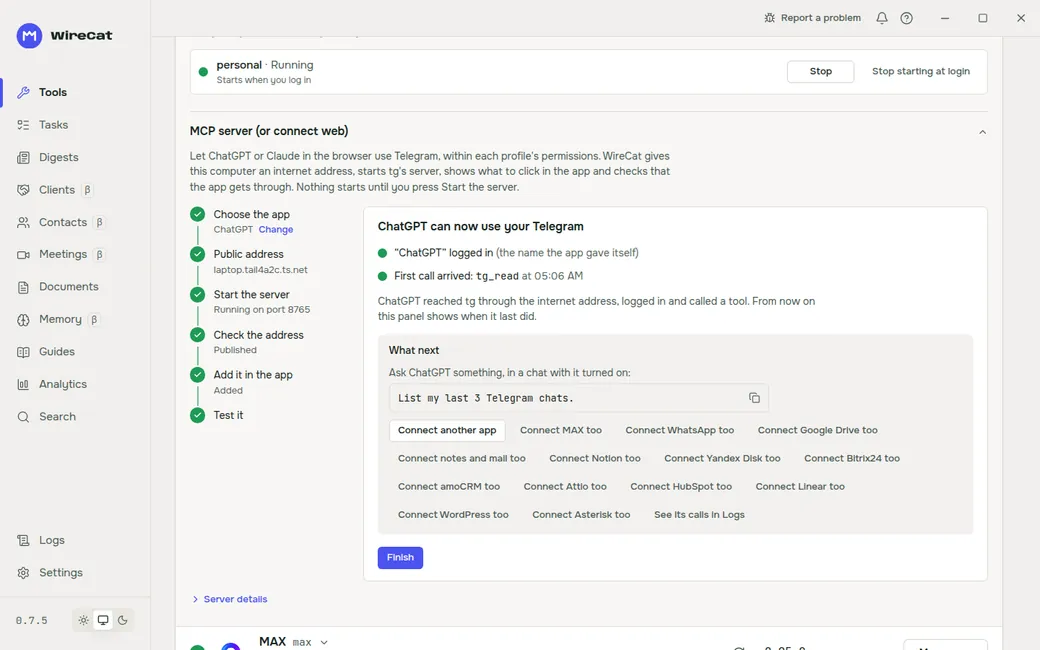
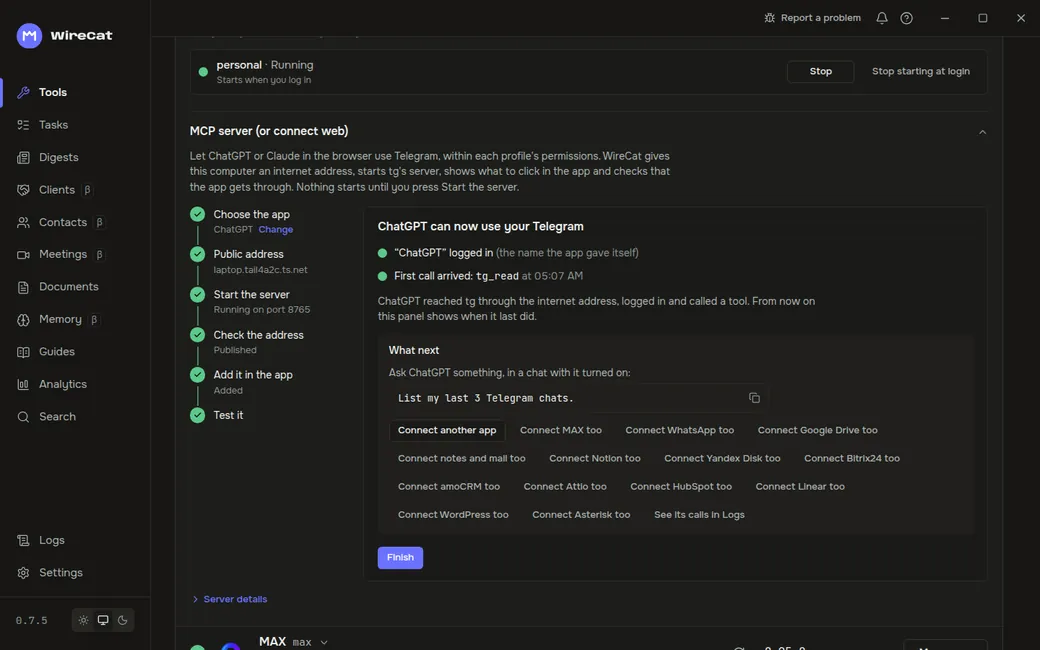
- MCP server (or connect web): lets ChatGPT or Claude in the browser use the tool. The Tailscale Funnel guide publishes the server, or you use a Cloudflare tunnel.
- Mail agent (Email only): a switch that starts Memo's mail agent. It reads new mail on a schedule and proposes tasks, invoices, orders and facts for you to accept on the Memory page, and it never sends anything. It needs Memo, and it runs in the agent you choose in Settings, under Agent for background jobs. With Claude Code, one run costs at most $1.
- Set up your notes (Memo only): connect an Obsidian vault or a folder of Markdown files, see Set up your notes.
- Rewrite records for better search and Search harder (Memo only): see AI model and better search.
- Uninstall: removes the tool. Its data stays on this computer until you delete it, and the dialog offers Uninstall and delete data.
Remove an account
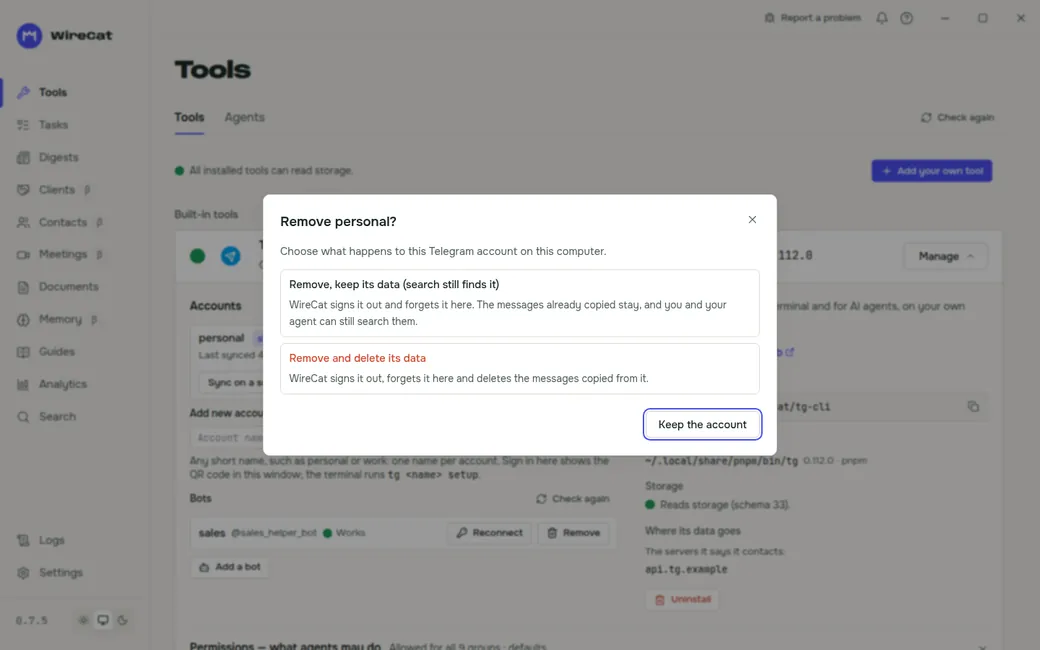
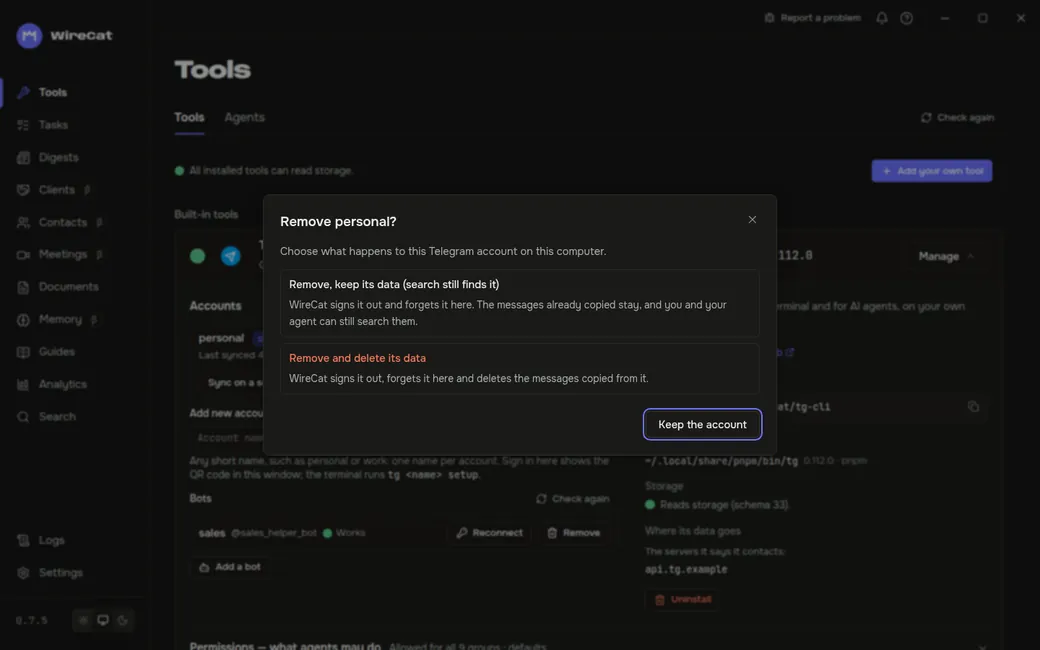
Remove account in an account's menu removes one account and keeps the tool. Choose Remove, keep its data (search still finds it) or Remove and delete its data. The dialog then lists what goes and what stays, and nothing happens until you confirm. Keep the account cancels. This works for every tool with accounts: Telegram, MAX, WhatsApp, Email, Google Drive, Zoom, Google Calendar and Bitrix24.
Agents
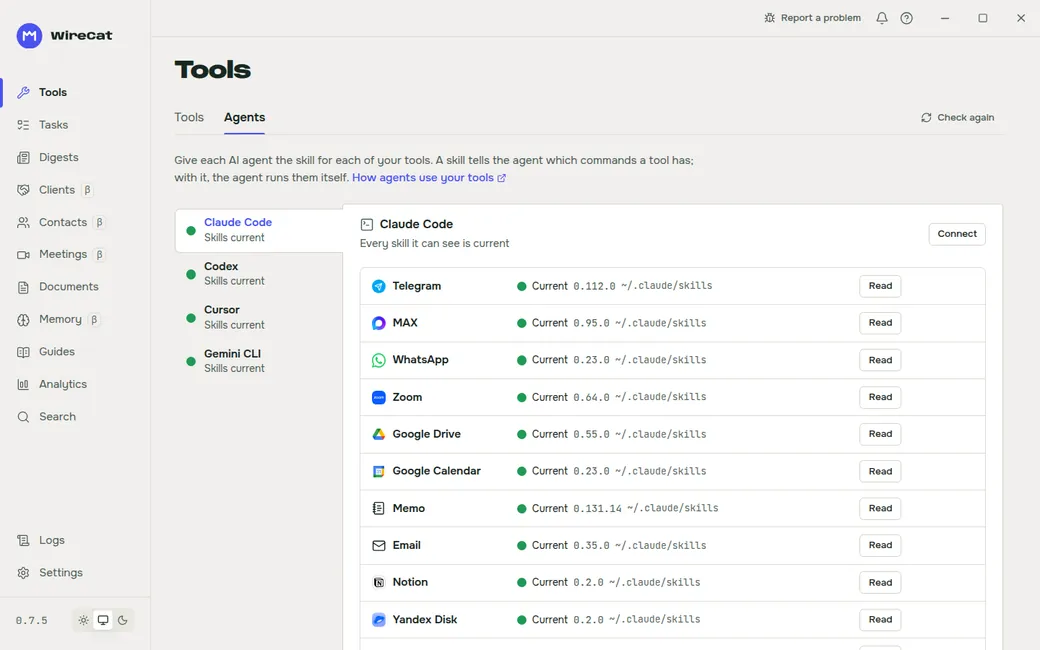
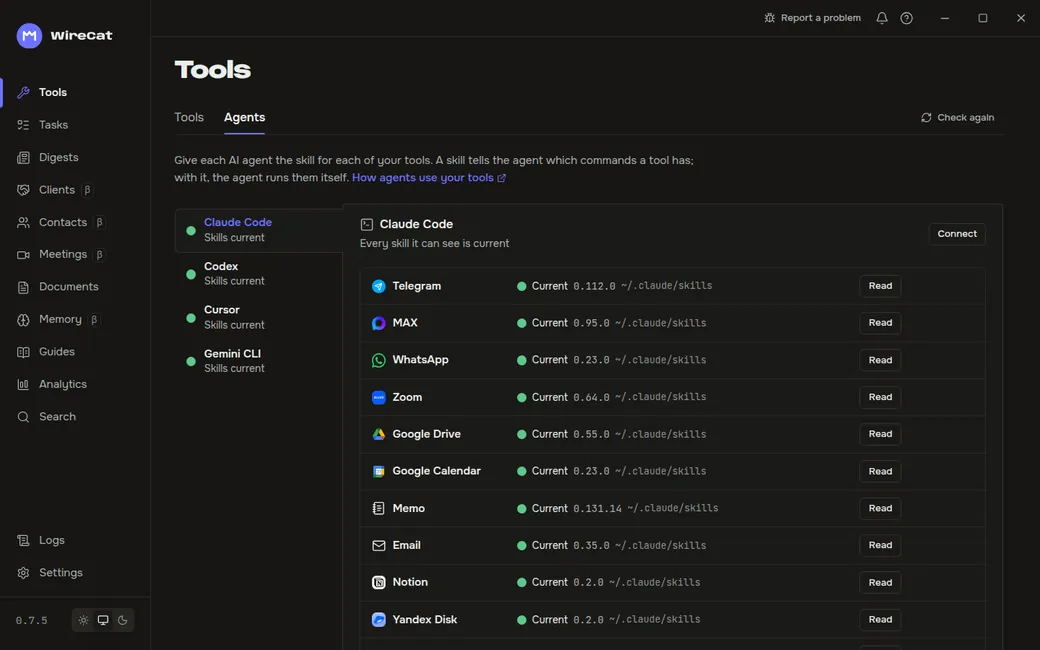
You use this page to see which AI agents are on the computer and which skills each one has. Connect gives an agent the skills of the tools you choose. The app finds a missing or old skill, a tool that a new terminal cannot find on its PATH, and commands that a profile's permissions block, and it fixes or explains each one. When a problem needs more than a click, Fix can also open your agent (Claude Code, Codex or Gemini CLI) in a terminal with a prompt that describes the problem. The agent explains what it finds and asks before it changes anything.
Search
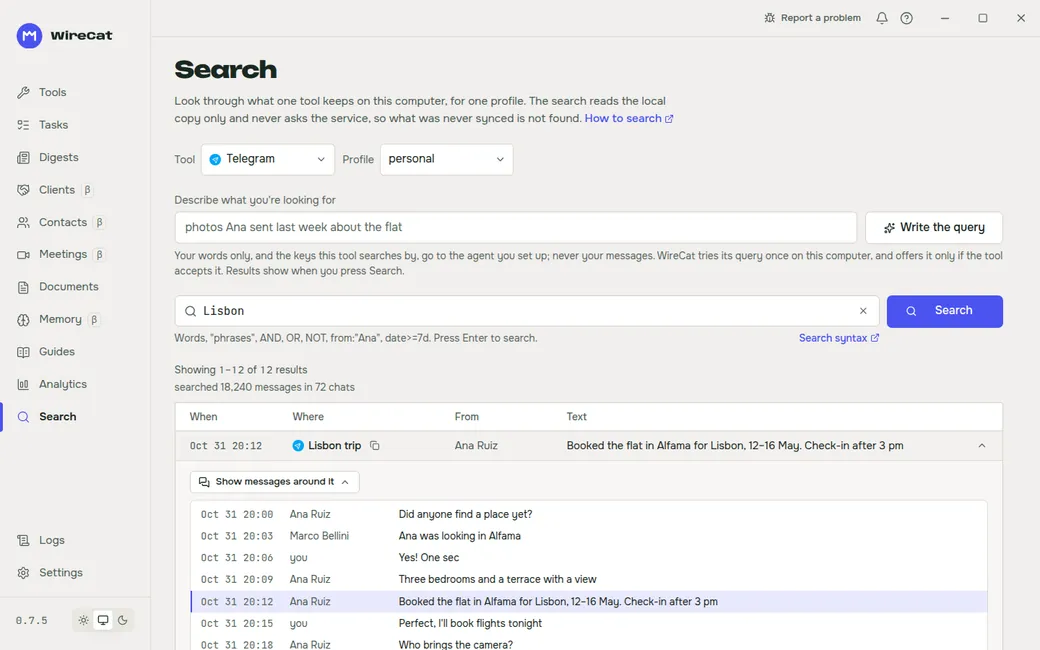
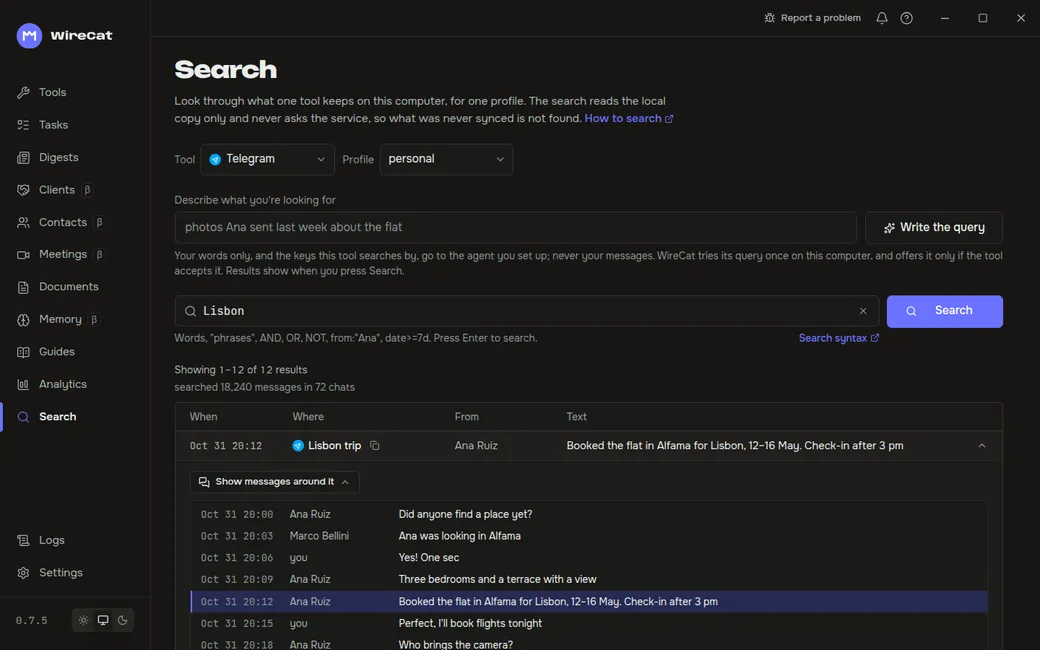
You use this page to look through what one tool keeps on this computer. Choose a Tool and a Profile, then type what to look for. The empty search bar suggests the filters people use most, then ready queries. The search reads the local copy only and never asks the service, so what was never synced is not found. One line under the results says how much was searched. Open a result to see the messages around it, the whole mail thread or the meeting's transcript.
A search in Telegram, MAX or WhatsApp may take up to 30 seconds. One that runs out of time says the query is fine and offers Try again. For Memo, Search harder can reorder the top results with an AI model, once you allow it in AI model and better search.
Tasks
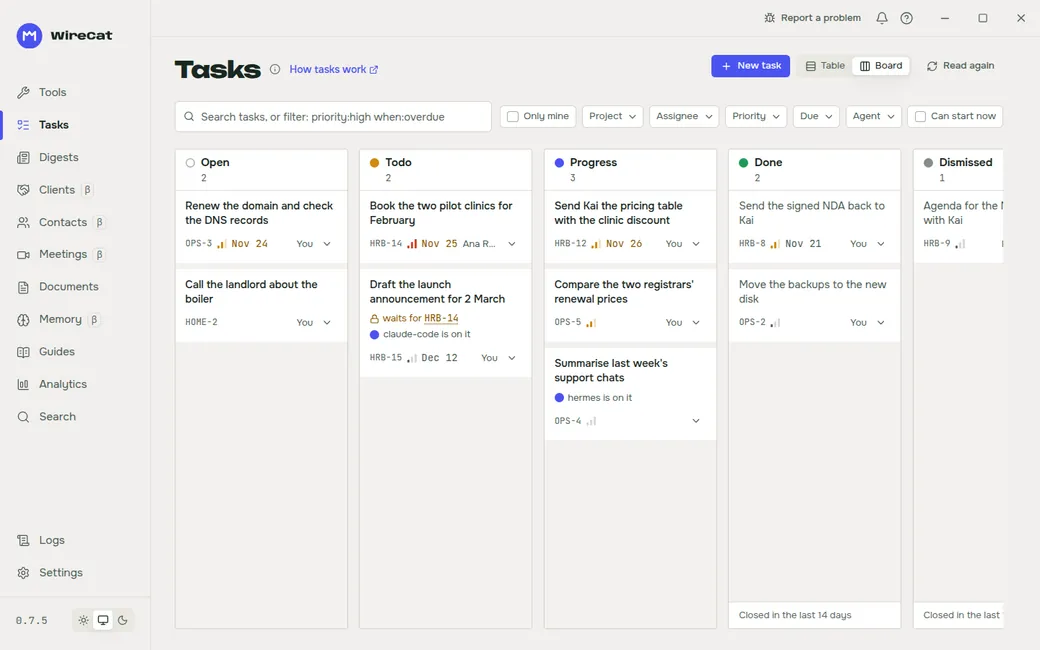
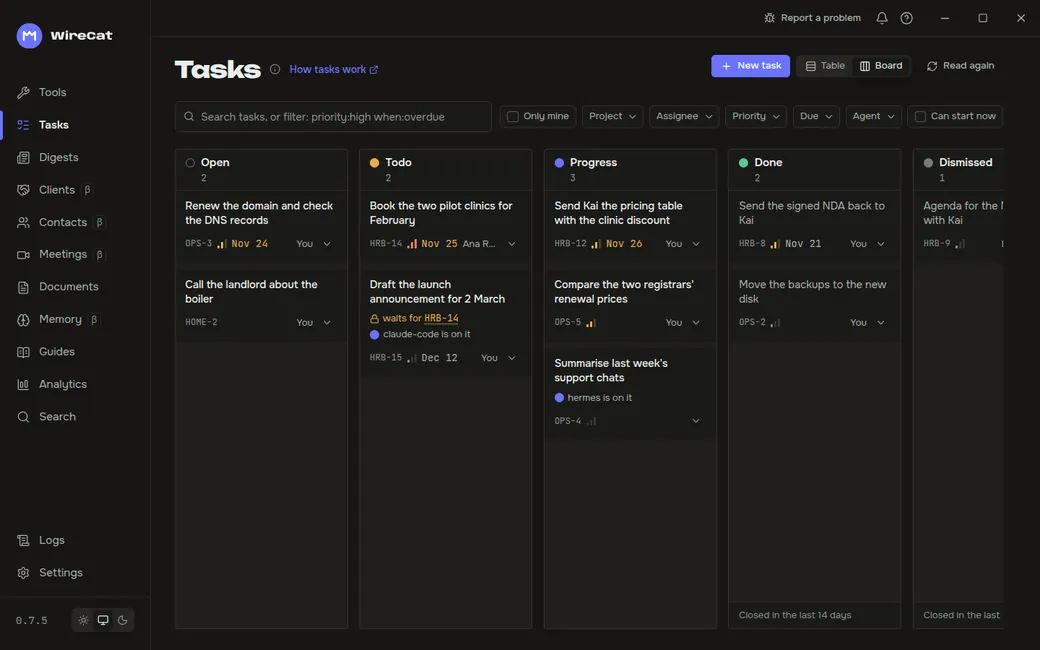
What you and your agents plan to do. Agents read and change the same list, so a task you ask for in your
agent's chat appears here. Switch between Table and Board, and search with filters such as
project:HRB priority:high when:overdue, or with Only mine, project, assignee, priority, due date and agent.
A board column is a state: Open, Todo, Progress, Done or Dismissed. A column shows its first
cards; Show more shows the rest, and Done and Dismissed show the last 14 days. Memo keeps the tasks; the page
says so if Memo is not installed.
New task opens a dialog: a title, a project, a priority, a due date and an assignee, whom you find by name. Open a task to change it. Save says Saved, and a close or a link warns before it drops what you typed. If the task changed while you edited it, your text stays, and you choose to save or cancel.
Memo also finds tasks in your chats and mail. They show with "From messages" and the service, and Source filters them apart from your projects. Such a task shows the message it came from, with Open in the chat or Open the email. It has only three states, Open, Done and Dismissed, and no priority, type, agent or project: a note beside each says why. On the board, drop it on Done or Dismissed to close it.
Digests
One short summary of your chats, mail, meetings and tasks every morning or every week, in the app, in Telegram or by mail. A coding agent you choose, such as Claude Code, writes it. The Digests tab shows what each digest wrote, and a name, chat or task in it opens in one click. The Settings tab is where you set digests up. Digests shows how.
Clients
Your CRM deals and leads as a table or as a board by stage. A move to another stage goes to Bitrix24 too. A deal's card lists the calls with its people, and its company opens in a card of its own. Clients shows how to import them and map each CRM's stages onto yours.
Meetings
All your meetings, calls and calendar events in one list, from every account. A calendar event and its Zoom or Meet
meeting are one row. Meetings come from Zoom, Google Calendar and Google Meet, and calls from a phone system such as
Asterisk or Beeline. Choose Week, Month or Table. Meetings at the same time stand side by side, as in
Google Calendar. Search meetings takes words of the title or a field such as kind:call, and suggests as you
type. Only with a transcript hides the rest.
Open a meeting to see its card: the participants and their answers to the invitation, the join links, the place, the documents, the summary and the transcript. Find in transcript finds a word in it. Open in Google Calendar opens the event in its calendar. A call with a recording on this computer has Listen. A large file or an unusual format opens in your own player. A link to a meeting, from a digest or a client card, opens its card here. The page needs Memo.
Documents
Every document WireCat keeps, from every account: Google Drive files, your notes folders, files you added and imports.
A folder tree per account is on the left and a table on the right. Search documents takes words or a field such
as kind:pdf, and Only with text hides files with no text. Open a document to read its text, its tags, the people
it names and its meetings, or open it where it lives. The page needs Memo.
Guides
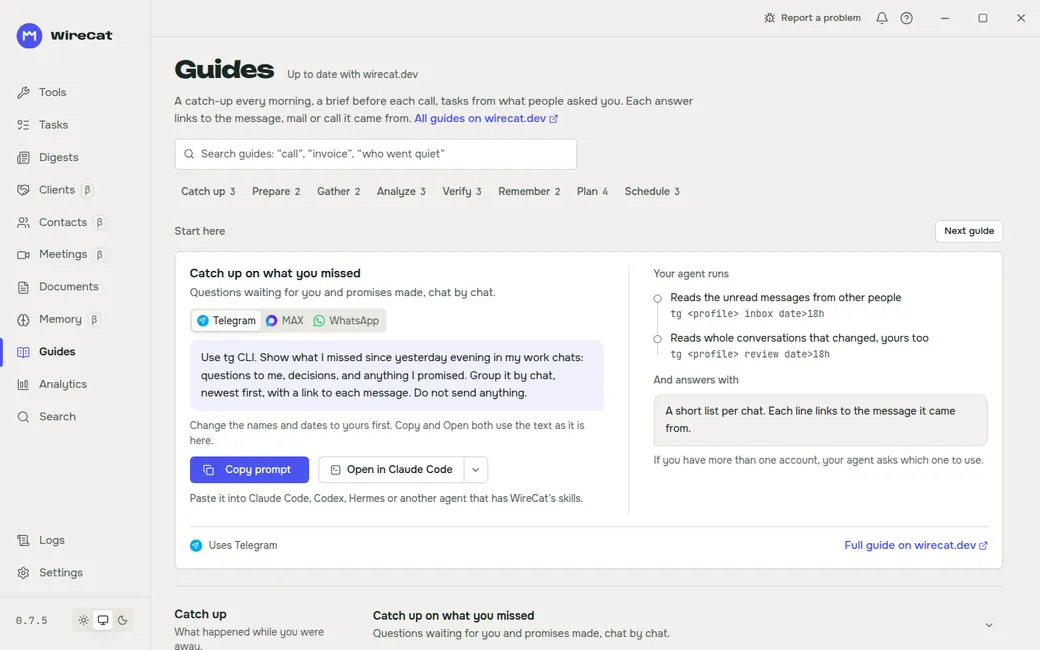
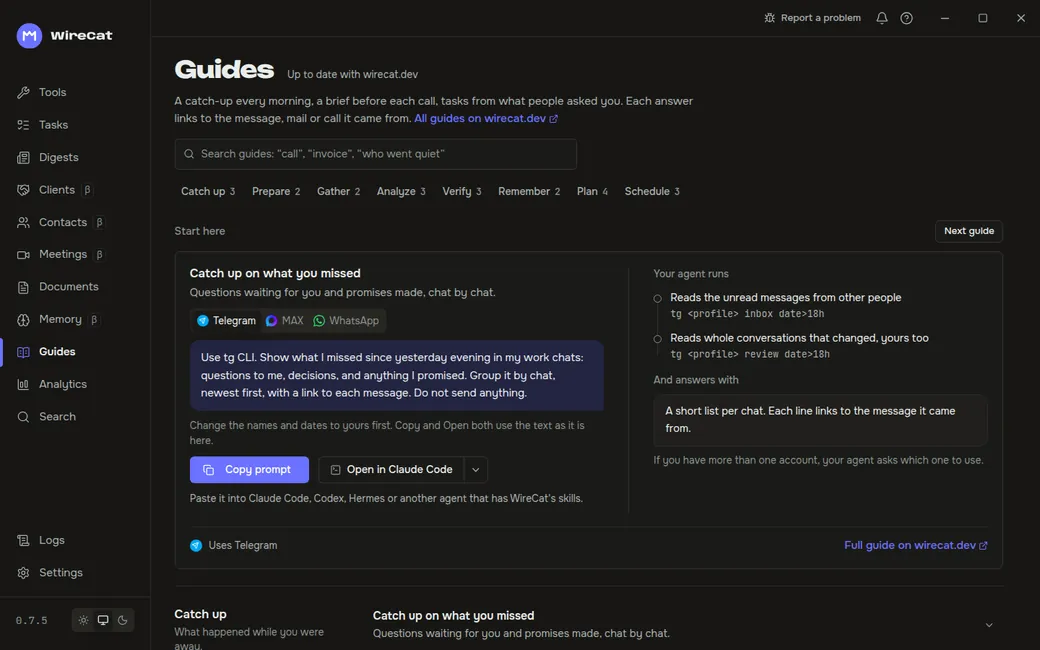
Ready prompts for a catch-up every morning, a brief before each call and tasks from what people asked you. They are grouped by goal: Catch up, Prepare, Gather, Analyze, Verify, Remember, Plan and Schedule. A guide shows what it needs. Copy prompt copies it for your agent, and Open in an agent starts that agent in a terminal with it. The guides that came with the app work offline, and new ones arrive when you are online.
Memory
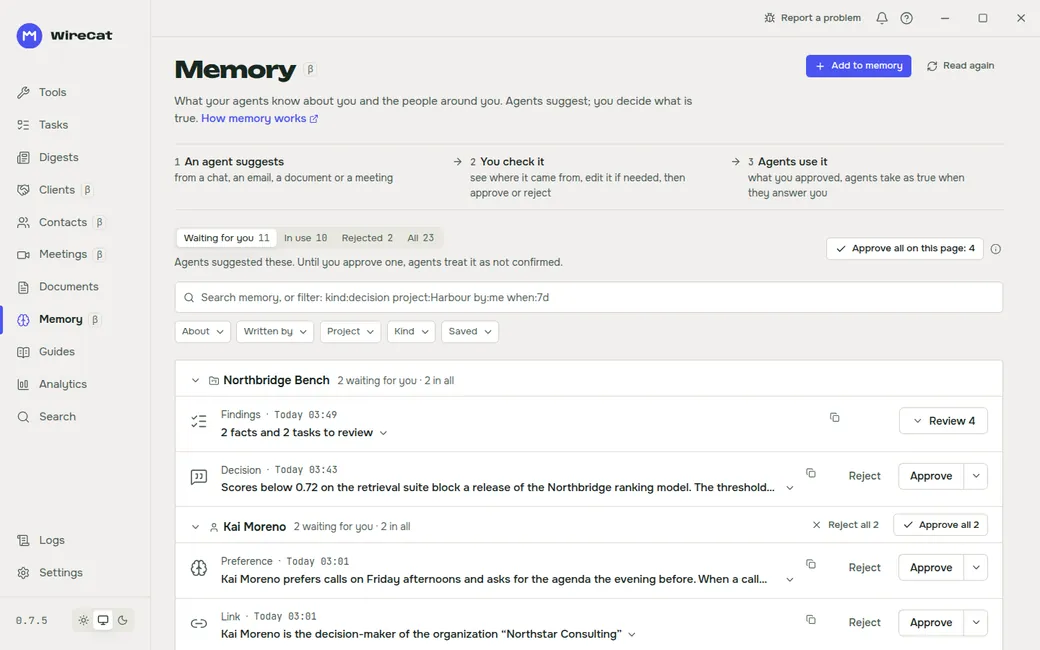
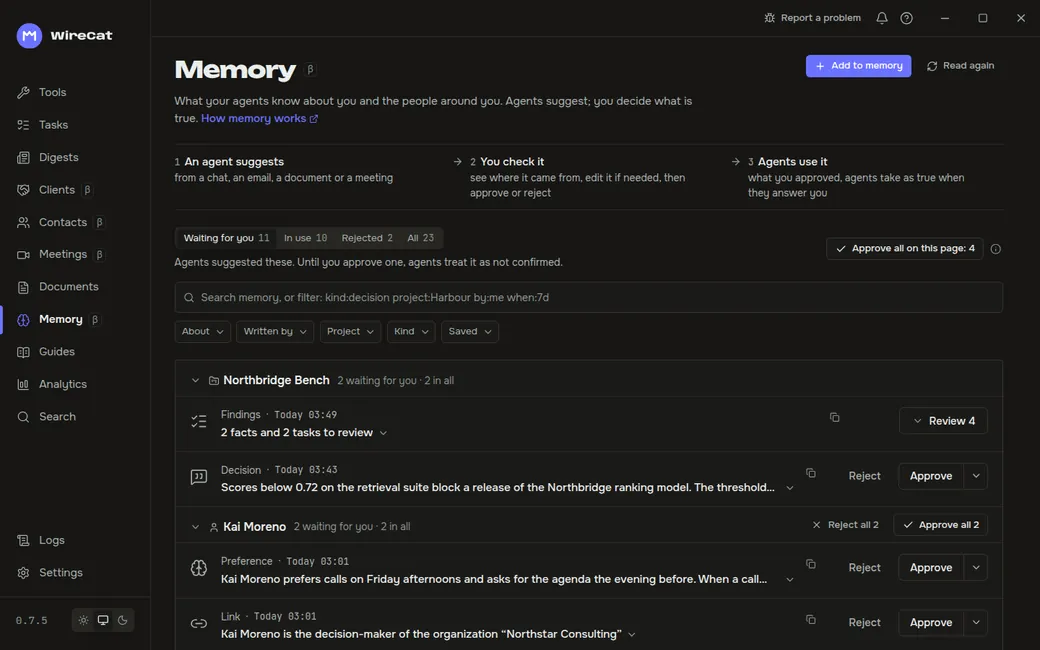
You use this page to decide what your agents may take as true about you and the people you talk to. An agent connected to WireCat saves what it learns, such as "Kai prefers Friday calls", with the messages that show it. Nothing it suggests counts until you approve it. Add to memory keeps a note, a link, a file or a picture you give it, and the facts you tick. Memory walks through the page.
Contacts
Who is who across your messengers, mail, meetings and CRM, one row per person. Join two entries that are one person, undo a wrong join, and answer your agents' doubts. Contacts shows how.
Analytics
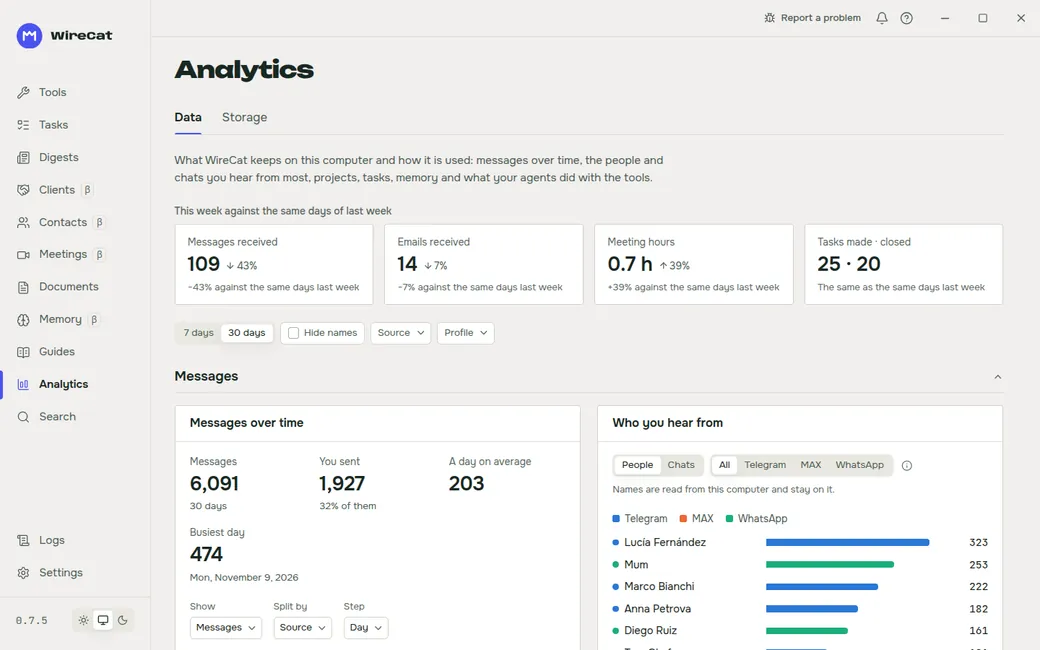
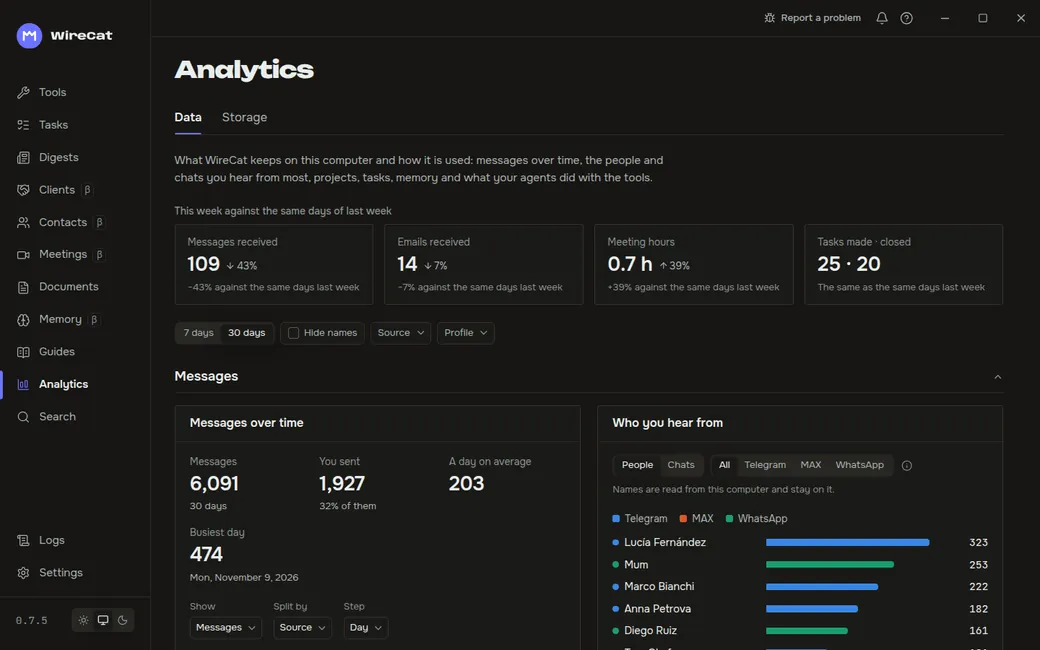
What WireCat keeps and how it is used. The page is read-only. Choose a period (7 days, 30 days, 90 days or All time) and read: What WireCat keeps (messages, chats, emails, documents, meetings, attachments and accounts, with the space on disk), messages over time, Who you hear from, projects, tasks, meeting hours, memory, and How WireCat helps, which counts what your agents did with the tools. The chart of when you talk shows everyone or only you, and all messengers or one. A muted chat counts as a chat, but its messages do not count. Explore builds your own chart. Hide names hides the people and chat names, for example before you share your screen.
When a number cannot be shown, its card says why and offers the fix: install or update a tool, sign in, or try again.
Storage
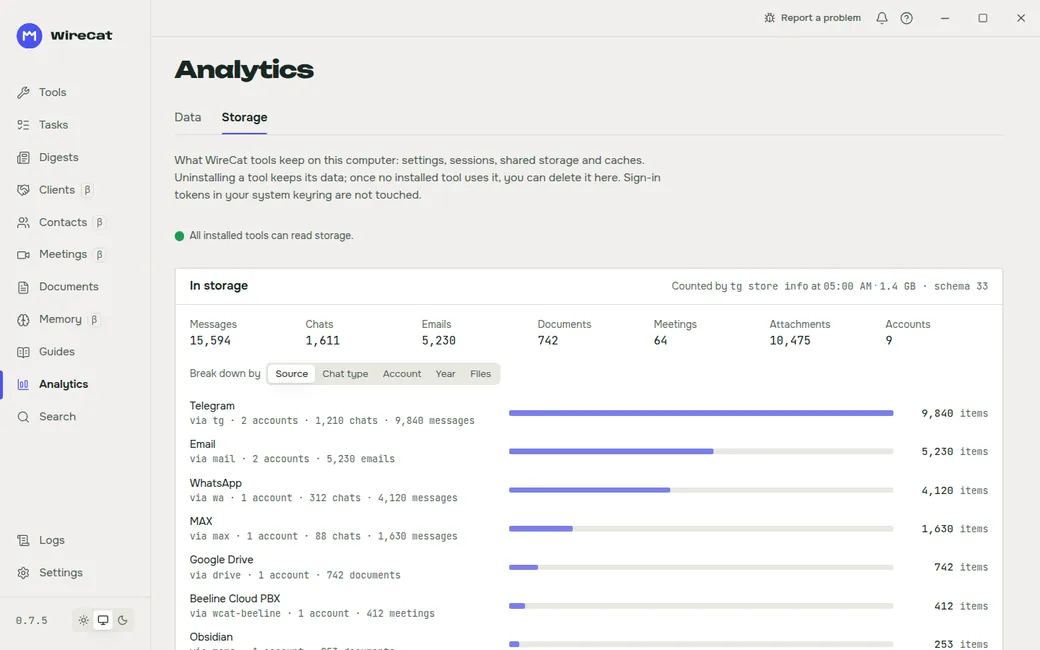
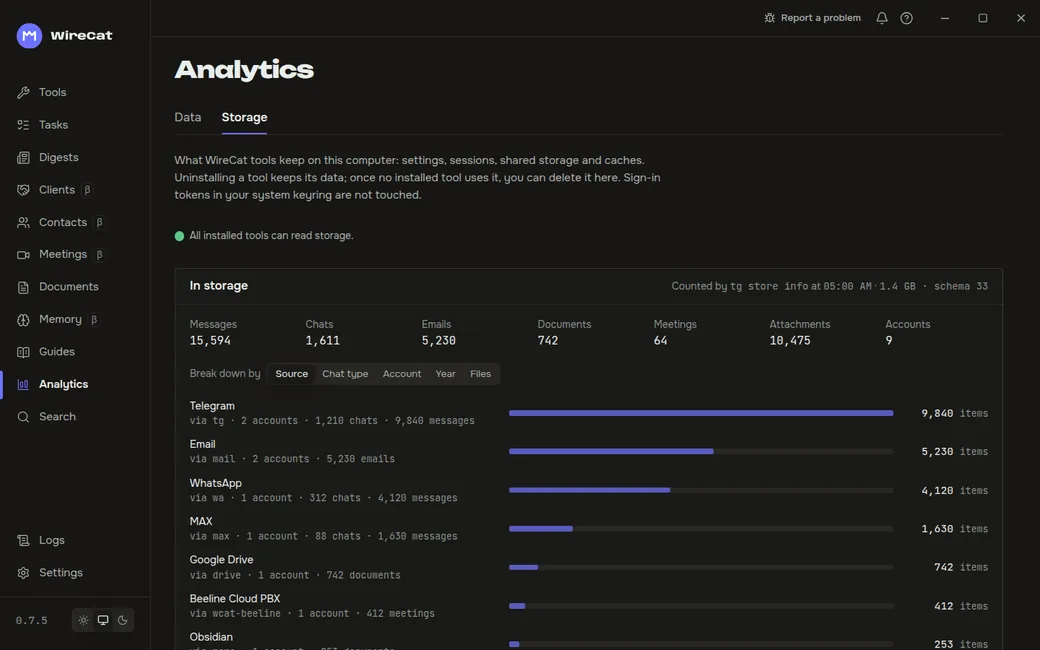
You use this page to see how much space the tools take and to clean up. It shows each tool's folders as
Settings, Data and Cache, the Shared storage (the file wirecat.db, where the tools keep
messages, mail, documents and notes) with its counts, and a Tables view of what is inside.
- Backups: Back up now makes a copy of the whole storage, which you can protect with a password. The page shows how to restore a copy.
- Clear storage…: deletes every message, chat, email, document and meeting in the shared storage. Settings and sign-ins stay. The dialog backs up first, unless you untick it.
- Import from a file: add records from a spreadsheet or another system, such as invoices, payments or
organizations, from a CSV or JSON file. Choose the type and format, then Download template and fill it in. Name
the Source, such as
sheet:rentals: importing the same source again updates its records instead of adding copies. Choose file, then Check: it counts what is new, updated, unchanged and refused, and lists each refused record with its line and column. Import adds them. Changes that need your review wait on the Memory page. - Delete: removes a tool's folders once no installed tool uses them. Delete all leftover data removes all of them. Sign-in tokens in your system keyring are not touched.
Logs
Search what the tools recorded about their runs when something failed. Filters include the tool, status, command, profile, kind of run and store table.
Settings
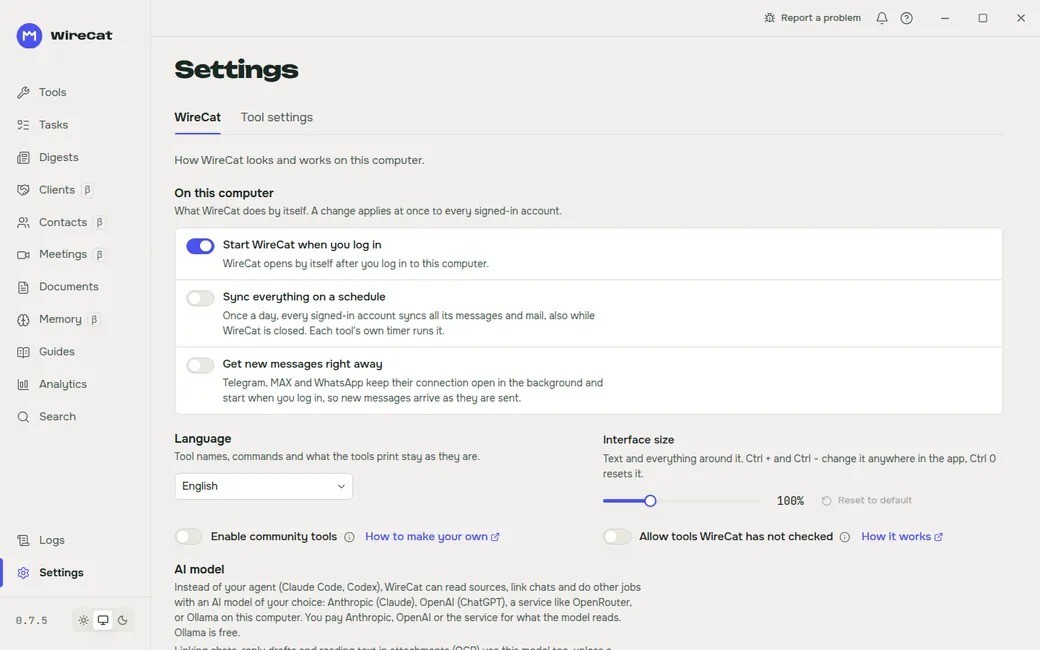
Language and Interface size of the app are at the top: Ctrl and + or − change the size anywhere in the app, and Ctrl and 0 resets it (Cmd on macOS). Tool names, commands and what the tools print are not translated. From the top, the page has:
- Enable community tools and Allow tools WireCat has not checked: see Add your own tool.
- AI model and Reading for facts: one model and key for the features that need one. See AI model and better search, and Run WireCat on local models to keep it on your computer.
- Agent for background jobs: the coding agent that runs the mail agent and the digests on a schedule. See Agent for background jobs.
- Only this computer: one switch that keeps every model call on this computer, with a list of where each feature sends data now. See Only this computer.
- Reading pictures: whether your coding agent may read the text of a picture you choose. See Reading pictures.
- Tools: the settings of each tool and of WireCat itself, as a list or as JSON. The app reads them from the
tool and saves them through the tool's own
configcommand, so the tool checks every value before it is written. - Account groups: a board that sorts your accounts into groups, such as personal and work. Drag an account to a group; hold Alt or Ctrl while you drop to copy it there. New group adds one. Each account also has a Personal or Work switch: work views, work agents and the work mark on contacts read only work accounts. Account groups need Memo.
Report a problem
Report a problem at the top sends a bug report with the versions and recent failed runs, with personal details hidden. Nothing is sent until you send it. Privacy in the Help menu lists what the app sends and when.
Add your own tool
WireCat Desktop can install tools that WireCat does not make: a community tool from the list WireCat reviews, or any
tool built on WireCat's libraries, added by its npm name. A WireCat tool that this version does not include yet, such
as @wirecat/beeline-cli for Beeline Cloud PBX calls, is added the same way and is marked Verified by WireCat.
Add your own tool shows how, what the review screen tells you before anything installs, and what a
tool's author needs so WireCat can add it.
The tools stay command-line tools
The app installs the same npm packages as npm install -g @wirecat/tg-cli and runs the tools' own
commands for versions, health checks, sign-in and sync. A tool installed by the app also works in a
terminal and for any agent, and a tool you installed yourself shows up in the app. The app never picks
an account or profile for you: a command that needs one uses the one you chose.
Your data stays where the tools keep it, on this computer. The app goes online to install tools from npm, to download Node.js when it sets one up, to check GitHub for its own new version and to send a bug report when you send one.
Open WireCat from a link
A wirecat:// link opens its item in the running app: a chat or a message, a task, a list of tasks, a memory to
review, a project, a meeting or the morning digest. Agents and digests write such links. A chat or a message opens in a
read-only screen, with the linked message marked; WireCat sends nothing from it. A digest link opens that day's report
on the Digests tab. Inside a digest, a person, a document or a deal opens in the app too, see
What a link in a digest opens. A link to something that is not on this
computer says so, with Copy the reference. When a web link cannot open in your browser, a dialog shows the address
to copy. Right-click any web link in the app to copy it.
Updates and removal
On macOS, Windows and with the AppImage, the app updates itself: it offers a new version at the top of
the window, then installs it and restarts. To check at any time, choose Check for updates in the Help menu. It
says WireCat is up to date, offers the new version, or says why the check failed, with Try again. A .deb copy gets new versions from WireCat's apt repository, which the package adds when it
installs: install them in Software Updater like your other updates. An .rpm copy downloads the new package
itself and opens your system's installer, and also shows the dnf command. Open in terminal runs
that command in your terminal: type your password there, then restart WireCat when the install ends. Your accounts and data
will not be deleted. Updates and uninstall on the download page give the
steps for each system. Removing the app leaves the tools and their data in place.
Prefer a terminal? Install a tool by hand or with your agent.
Common issues
Find the message you see, then follow the fix. An error on a tool's card is explained in Errors and how to fix them. If none fits, Report a problem in the app collects what the support team needs.
Windows says "Windows protected your PC"
The installer is signed, but SmartScreen trusts a signed app only after enough people have installed it, and the certificate is new, so Windows may still ask you to confirm the first start. Select More info, check that the publisher is Open Source Developer Viacheslav Ptsarev, then select Run anyway. If the publisher is different or missing, do not run the file: download it again from the download page. Smart App Control lets an app with a valid signature run; an older, unsigned version of WireCat is blocked when it is on. The first-start steps show where to click.
The AppImage says "AppImages require FUSE to run"
The AppImage needs FUSE 2. Install it with sudo apt install libfuse2t64 on Ubuntu 24.04 and later, or sudo apt install libfuse2 on older Ubuntu and Debian, then open the file again. The first-start steps for Linux say the same.
"Node.js is needed to install WireCat tools", "Node.js is too old" or "npm needs administrator rights"
The tools run on Node.js 22.16 or later within 22.x, or 24 or later, with npm. WireCat Desktop itself runs without it. Select Set up Node.js for me: WireCat downloads Node.js, checks it against the checksums Node.js publishes and unpacks it in your user folder, without administrator rights. Your own Node.js stays as it is. If you prefer to install it yourself, choose I'll install it myself and select Check again afterwards.
An installed tool is not found in a terminal or an AI app
Terminals and AI apps that were open before the install see the new tools only after you restart them. If a new terminal still does not find the tool and WireCat set up Node.js for you, open the Node.js entry under Your computer and select Add to PATH, then open a new terminal. For a shell that WireCat does not edit, the same dialog shows a line to add to the shell's startup file yourself. Remove from PATH undoes it.
Installing a tool fails with "Could not reach the npm registry"
WireCat installs tools from npm, so it needs the internet. Check your connection or proxy and select Try again. An install that takes longer than 15 minutes is stopped; the same check applies. If the message says the release "could not be confirmed as built by WireCat", nothing on your computer changed: try again later.
A tool shows "Installed, but it does not start"
The tool's lamp is red and its button says Fix. Fix opens Fix with an AI agent: WireCat writes what went wrong into a prompt and opens Claude Code, Codex or Gemini CLI with it in a terminal. The agent explains what it finds and asks before it changes anything. When it says the problem is fixed, select Try again. If WireCat finds no agent, copy the prompt into your own agent. On macOS, if Terminal does not open, allow WireCat under System Settings, Privacy & Security, Automation. A second copy of the same tool can also cause trouble: Manage lists the copies and how to remove the extra one.
Sign-in does not finish
Sign in here waits for you to finish in the browser or on the phone. If the browser does not come back to WireCat on its own, copy the address or code the browser shows and paste it into the field the sign-in offers. A code or QR code expires after a few seconds, and a new one appears by itself; use the latest one. A messenger can take a minute to send its history: keep it open on the phone, or select Stop and keep what came. If the message says the version "cannot sign in here yet", update the tool on the Tools page or use Open terminal. If WireCat finds no terminal program, run the command it shows yourself, then select Check sign-in.
Check health reports a broken settings file
A missing or extra comma, a comment, single quotes or an unclosed bracket in a tool's settings file stops the tool from reading its settings. Under Manage, Check health names the problem; select Repair the file. The tool keeps the file as it was, says what it changed, and changes nothing it cannot fix safely. If it refuses, the message points at the line to correct by hand in a text editor.
A tool "can't read storage"
Another WireCat tool moved the shared storage to a newer format than this tool reads. Update the tool on the Tools page; Storage lists which tools need it. If no newer version is out yet, the page says so. The app checks this before it installs or updates a tool, so you usually see this only after Update anyway, or after a tool was updated outside the app, for example with npm in a terminal.
"The update could not be installed"
Select Try again, or get WireCat from the download page. If the message says the download "did not match WireCat's signature", WireCat did not open it and saved nothing. A .deb or .rpm copy opens your system's installer, which asks for your password. A copy that WireCat cannot recognize cannot update itself: install the new version the way you installed this one. Your accounts and data will not be deleted. More in Updates and removal.
ChatGPT or Claude in the browser cannot reach the tool
A new Tailscale Funnel address can take up to 10 minutes to appear on the internet; wait, then add the server in the app again. The Troubleshooting section of the Tailscale Funnel guide covers the other messages of that step.
Install and connect
Install a WireCat CLI and MCP server with your agent or by hand, connect one source such as Telegram or Google Drive, and check the first answer.
Contacts
See who is who across Telegram, MAX, WhatsApp, mail, meetings and Bitrix24, join the accounts of one person, let your agent sort the matches, undo a wrong join and answer your agents' doubts.