Digests in WireCat Desktop
Get one short summary of your chats, mail, meetings and tasks every morning or every week, in the app, in Telegram or by mail, written by the AI agent you choose.
You have many chats, mail and meetings, and no time to read them all each morning. A digest is one short page that says what came in and what waits for you. An AI agent on your computer writes it at the time you set, every morning or every week, and it arrives without asking: in the app, in Telegram or by mail.
In WireCat Desktop you read all your digests in one place, newest day first. A name, a chat or a task in a digest opens in one click, so you go from "Anna waits for an answer" straight to Anna's message. You set each digest up once: when it runs, what it reads, where it is sent and which agent writes it.
Digests has its own page in the sidebar, after Tasks, with two tabs: Digests to read them and Settings to set them up. It needs Memo, the tool that keeps your chats, mail and meetings on this computer, and one coding agent here, such as Claude Code, Gemini CLI or OpenCode. Digests is marked beta: a β beside its name means the section is new and lightly tested.
On this page:
- Before you start
- Read your digests
- What a link in a digest opens
- Create a digest
- The table
- One digest's settings
- When a digest is ready
- If a digest does not arrive
- Next
Before you start
- Memo is installed on the Tools page. Without it, the page offers to install it.
- An agent that can write digests. The digest is written by a coding agent on this computer. Claude Code, Gemini CLI and OpenCode can do it. Codex can do it after you agree to a warning, see Choose the agent. The list in the app's Settings (at the bottom of the sidebar), Agent for background jobs, says why any other agent cannot. If no agent is ready, the page says so and offers Choose it in Settings.
- Optional, a place to send it. To get digests in Telegram or by mail, connect a Telegram bot or a mail account on the Tools page first. Without one, a digest shows only in the app and as a notification.
Read your digests
Open Digests in the sidebar. The Digests tab shows the newest day's report in full, with the list of days beside it. Click a day to read it. When you have more than one digest, a list at the top picks which one. Settings beside the digest's name opens its settings on the Settings tab.
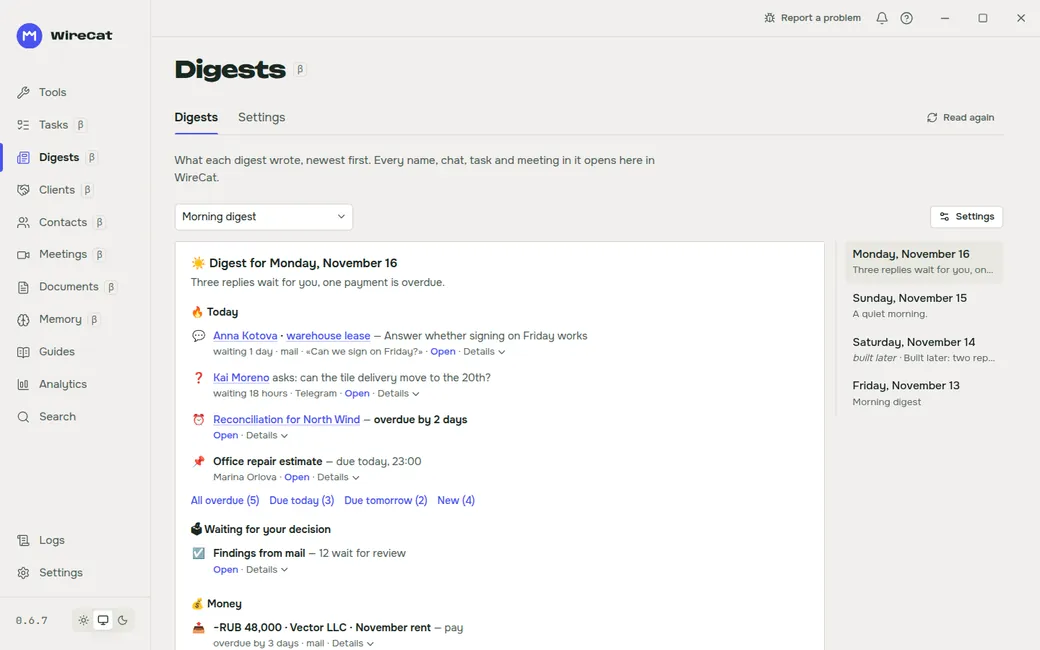
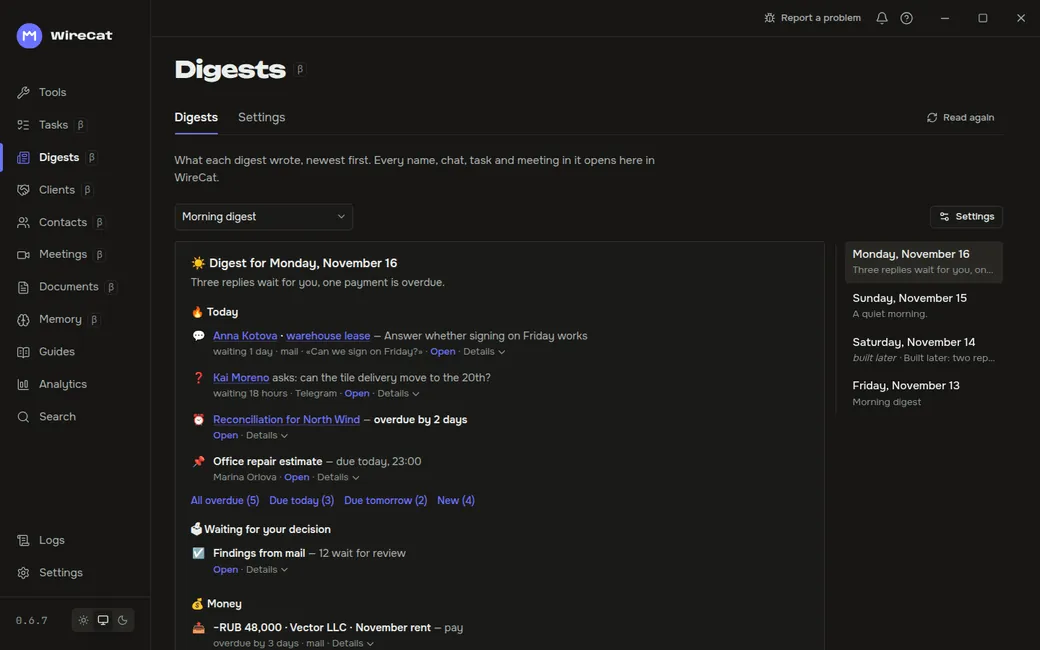
When the last run of a digest failed, a notice at the top of the tab says so, with an Open button that names the digest. It opens that run: instead of a digest, the agent wrote what went wrong. Get now in the digest's settings runs it again once the cause is fixed.
With no digest yet, the tab offers Set up a digest, which takes you to the Settings tab.
What a link in a digest opens
Names, chats, tasks and meetings in a report are links. Each opens its item here in WireCat:
| In the digest | Opens |
|---|---|
| A message, a chat or a mail thread | The conversation on a read-only screen, with the message marked. WireCat sends nothing from it. |
| A task | The task's dialog |
| A group of tasks, such as All overdue | The task list on Tasks, with that filter |
| A proposal to review | Its row on Memory |
| A project | Tasks, filtered to that project |
| A line about sync | That tool's sync |
| A person | Their card on Contacts |
| An event or a call | The meeting's card on Meetings |
| A document | The document's details on Documents |
| A deal or a lead | Its card on Clients |
Anything else in a report stays plain text.
Create a digest
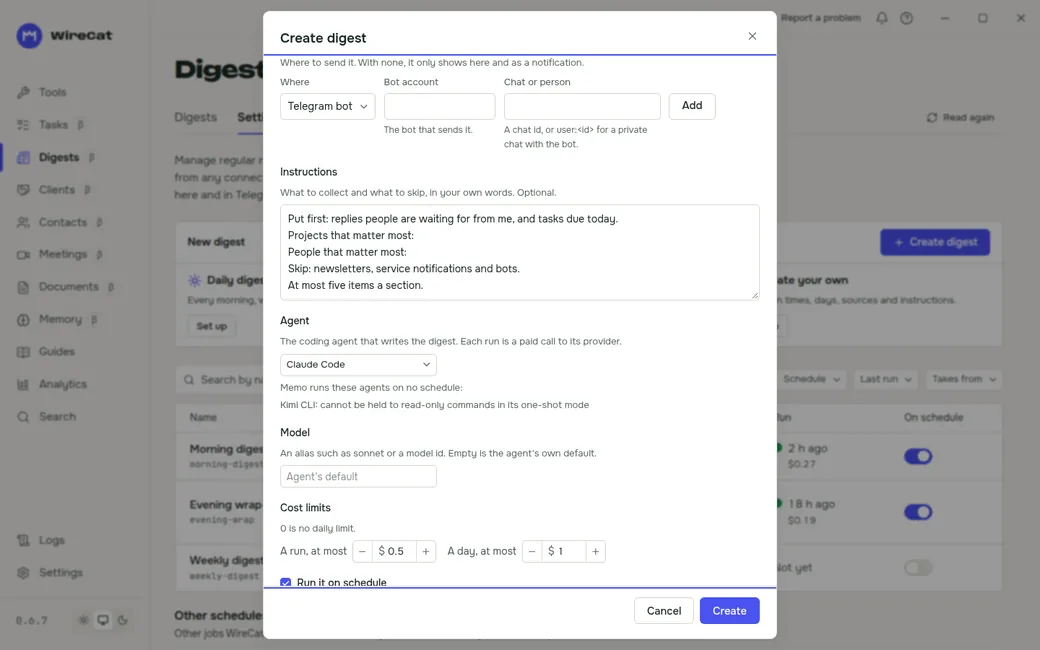
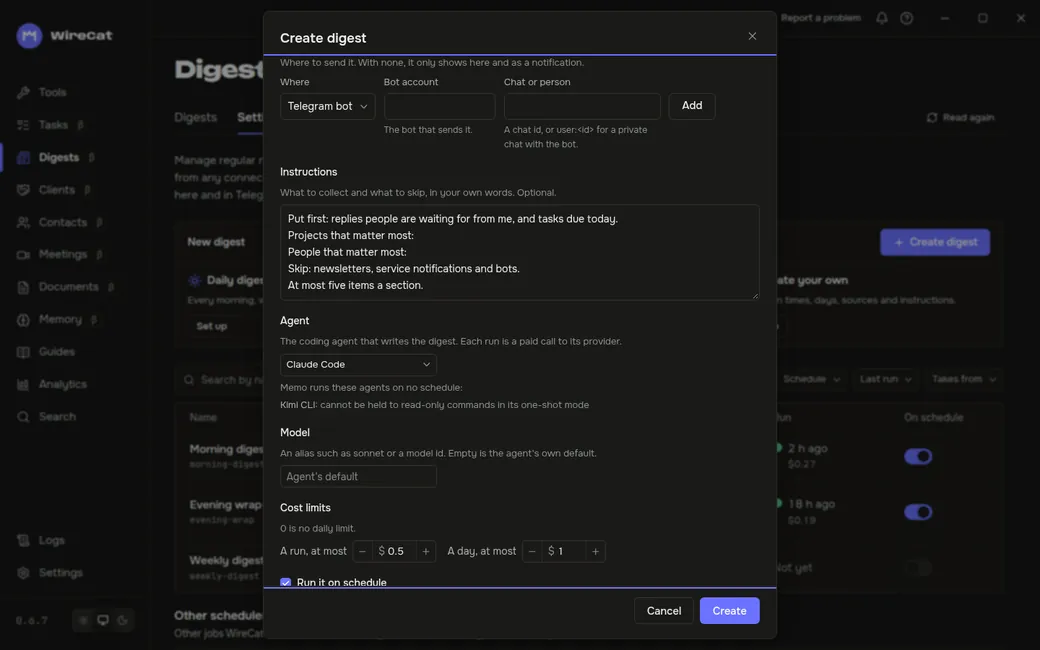
On the Settings tab, under New digest, pick Daily digest, Weekly digest or Create your own, and click Set up. The dialog Create digest asks for:
- Title. A second digest from the same template gets its own name, such as "Weekly digest 2".
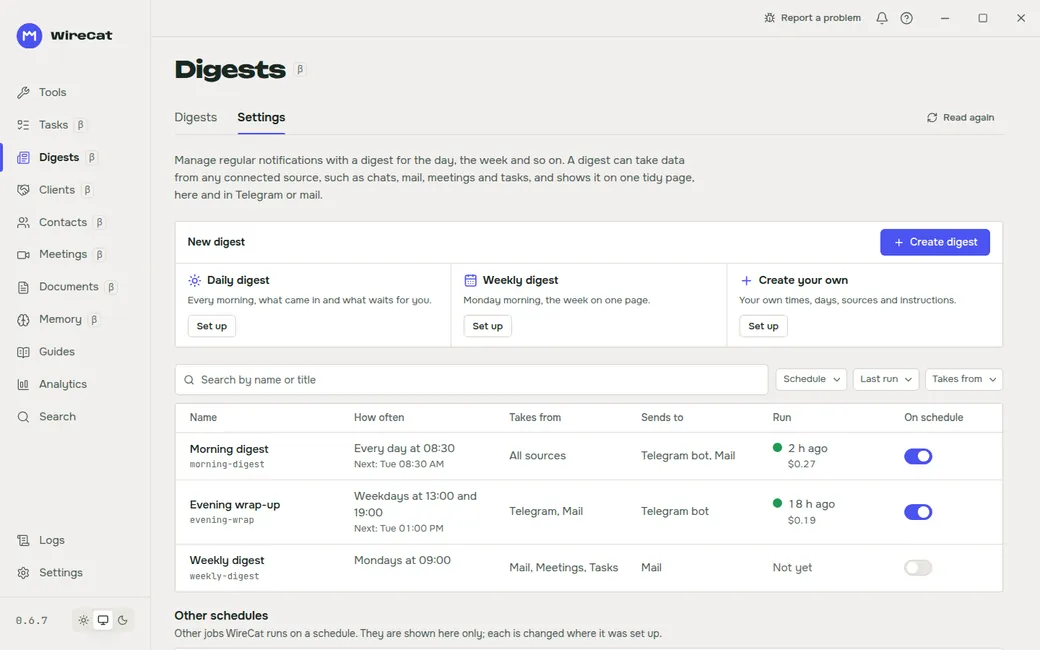
- Times and Days: one or more times a day, every day or on the days you pick. The table then reads, for example, "Twice a day: 08:30 and 18:00" or "Weekdays at 09:00".
- Takes from: the sources to read: Telegram, MAX, WhatsApp, Mail, Meetings, Tasks, Google Drive, Google Calendar and CRM. With none picked, it reads every connected source.
- Where: where to send it, a Telegram bot or Mail. Choose the account that sends it and who gets it, then click Add.
- Instructions (optional): what to look for and what to skip, in your words.
- Agent and Model: who writes it. See Choose the agent.
- Cost limits: at most this much for one run, and for one day.
- Run it on schedule.
Click Create.
Choose the agent
Agent is the coding agent that writes the digest. Each run is a paid call to that agent's provider, so what the digest reads goes to that provider too. A new digest starts with Claude Code where it is ready. Otherwise it starts with the agent you chose in Settings, Agent for background jobs.
- Model is optional. Type an alias such as
sonnetor a model name. Empty means the agent's own default. - Cost limits work only for an agent that says what a run costs. Today that is Claude Code. For any other agent, the dialog says that a cost limit cannot stop it.
- Codex follows its own limits, not WireCat's list of allowed commands. To use it, tick the box that says Codex may run any program on this computer while it writes this digest. Without the tick, Create and Save wait.
- Agents that Memo never runs on a schedule are listed under the field, with the reason.
Agent for background jobs explains the choice in Settings, which the mail agent uses too.
The table
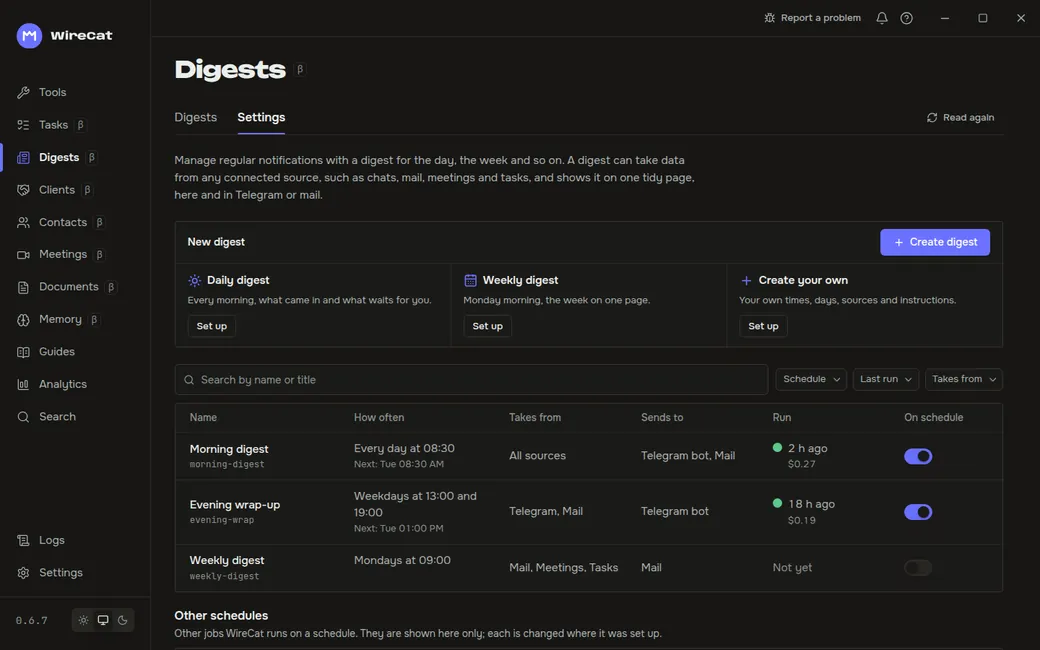
Each digest shows its Name, How often, Takes from, Sends to, its last Run with what it cost and the next one, and an On schedule switch. A digest that cannot run until you act shows Waits for you. Other schedules below lists other jobs Memo runs on a timer, such as the mail agent, and where to change each.
One digest's settings
Click a digest in the table to open its settings. All digests takes you back to the table.
- Read what it wrote opens its newest day on the Digests tab.
- Get now writes one at once. It first says what it will cost about. Its menu can show it only here or send it to one route.
- Put on schedule or Take off schedule.
- Settings: the same fields as when you created it, plus Sends it to (a Telegram bot or mail) and what it spent today.
- What to collect: your instructions for what goes in.
- How it looks: the template for Telegram, Email and Plain text, with a Preview of what would be sent. Reset to default brings back the original.
- Build past days builds the digests of days before you set it up, so you can read them on the Digests tab. It says the price first. Those days are not sent anywhere, and the list marks them "built later".
- More has Remove digest.
When a digest is ready
While WireCat runs, a new digest shows one notification, and it is kept under Notifications at the top of the
window. Open the digest opens that day's report on the Digests tab. A wirecat:// link to the morning digest,
for example in a message an agent sent you, does the same.
If a digest does not arrive
- The run failed because the agent has no credit, reached a limit or is not signed in. The digest's settings name the agent and the reason. When another agent is ready, they offer Switch to that agent.
- No agent is ready or chosen. Open Settings at the bottom of the sidebar, Agent for background jobs, and choose one.
- It shows on the Digests tab, but not in Telegram or mail. Open the digest's settings and check Sends it to.
For any other error, Errors and how to fix them shows where to read it in full.
Next
Ask your agent about something the digest listed, for example "What does Anna want from me?". To keep what the digest reads on your computer, see Run WireCat on local models.
Clients
Your CRM deals and leads as a table or as a board by stage. Move a deal to another stage, map each CRM's stages onto yours, and choose whose deals are copied.
Memory
Decide what your agents may take as true about you and the people around you, see where each fact came from, and add a note, a link, a file or a picture to memory yourself.