Set up Tailscale Funnel for WireCat MCP
Give a tool's MCP server a fixed public https address, so ChatGPT, Claude and other browser apps can use it. Step by step for macOS, Windows and Linux.
ChatGPT, Claude and other AI apps in the browser run on their provider's servers, so they cannot reach anything on your computer by themselves. A WireCat tool offers its messages to AI apps through an MCP server, a small server it starts on your computer. Tailscale Funnel gives this computer a fixed public https address that leads to that server and to nothing else. You need it only to use a tool from a browser app; an AI app on the same computer, such as Claude Code, connects locally without it.
You set Funnel up once. Afterwards, Start in WireCat Desktop gives the server its public address in one click. You need a Tailscale account (the login step creates one if you have none) and, for the Tailscale app, your computer password once to install it. Without the Tailscale app, WireCat connects to Tailscale by itself and needs no password.
Jump to your system: Without the Tailscale app · macOS · Windows · Linux · Troubleshooting
How WireCat Desktop helps
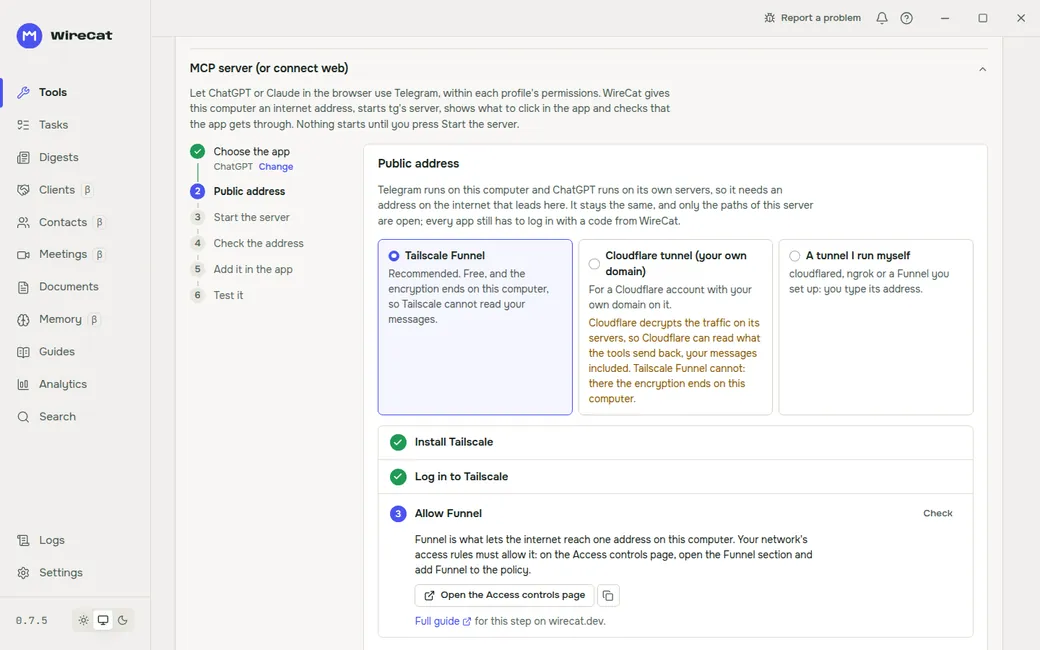
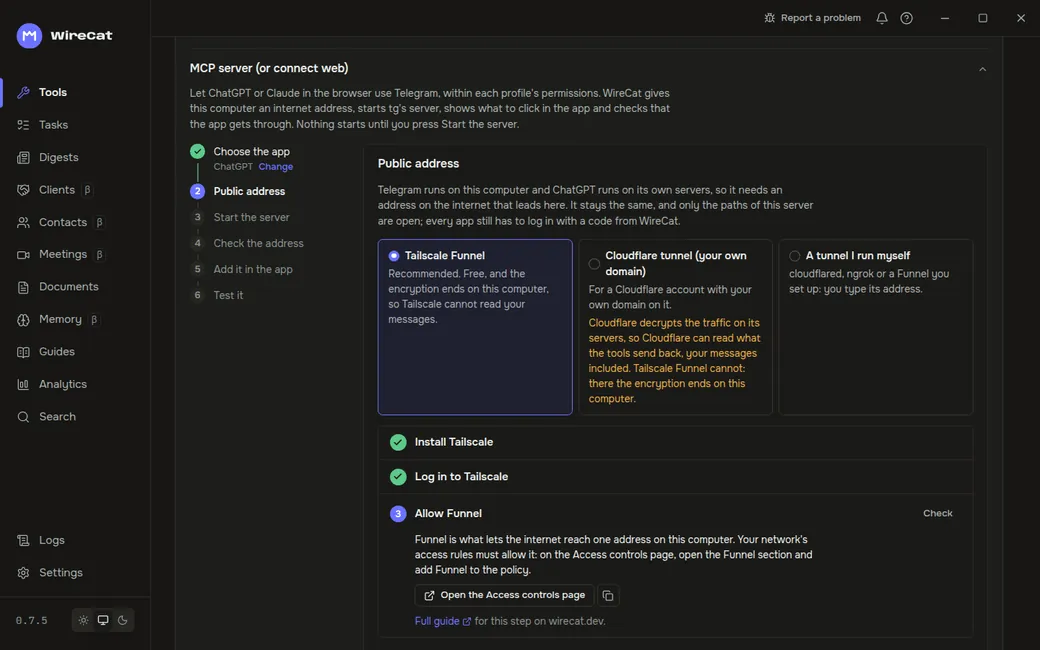
Open the tool, then MCP server (or connect web), then Start and connect, choose your AI app and, under Public address, choose Tailscale Funnel. Four steps follow. Each has a Check button, and the page checks again when you come back to the window, so you can do a step in your browser or terminal and return.
| Step | What WireCat does |
|---|---|
| Install Tailscale | On macOS and Windows it downloads Tailscale's official installer into Downloads, checks it against the checksum that Tailscale publishes, and opens it. On Debian, Ubuntu, Fedora and related systems it downloads Tailscale's package and shows it in your file manager. On Linux it also shows Tailscale's own commands for your release, with Open a terminal with them. |
| Log in to Tailscale | Runs tailscale login and opens the login page in your browser. |
| Allow Funnel | Opens the page of the Tailscale admin console where you switch on what Funnel needs. |
| Connect this server | Turns Funnel on for the server's local port and starts the server with the public address. |
WireCat never asks for your computer password and never runs sudo. The installer, the Software app or your terminal asks for it. Stopping the server turns off only the Funnel that WireCat turned on; your own Funnels and Tailscale settings stay as they are.
All your tools share one public address and take one path each, for example https://laptop.tail4a2c.ts.net/tg. The address stays the same the next time you start the server, so browser apps stay logged in. Funnel allows only the public ports 443, 8443 and 10000; WireCat uses another one only when the first is taken by a Funnel you set up yourself, and the step reports it if all three are in use.
Without the Tailscale app
If Tailscale is not installed on this computer, the Tailscale Funnel choice offers WireCat's own Tailscale connection. It is a small program, wirecat-funnel, that joins your Tailscale network as one more device. It needs no Tailscale app and no administrator password, on macOS, Windows and Linux.
- Install it. WireCat installs it from npm, like a tool, into your user folder.
- Connect to Tailscale. Select Connect to Tailscale. Your browser opens Tailscale's sign-in page; a free account is enough. If your Tailscale network approves new devices, the next page asks you to approve this one. If Funnel is not allowed for it yet, the next page lets you allow it. WireCat opens each page once, and Open the page again brings it back.
- Start. WireCat adds the tool's paths to its connection and starts the server. The address is
https://wirecat.<your Tailscale network>.ts.net, the same for every tool, with one path per tool. The first call can take a minute while Tailscale makes the HTTPS certificate.
WireCat turns off Tailscale's logs and support data for this connection. Tailscale still sees the device in your network and the time and size of each connection, but it cannot read what is sent. The address gets a public certificate, so it appears in public certificate logs; its name is wirecat, not your computer's name.
To use the Tailscale app instead, select Install the Tailscale app instead and follow the steps for your system below. When the app is installed, WireCat uses it.
macOS
Tailscale requires macOS Monterey 12.0 or later.
-
Install. In the Install Tailscale step, select Download and open the installer. The macOS Installer opens Tailscale's package from
pkgs.tailscale.comand asks for your password. Open Tailscale from Applications and follow its onboarding, which installs Tailscale's VPN configuration. To get the installer yourself, use Tailscale's download page for macOS. If the step says Tailscale is turned off, turn it on from the Tailscale icon in the menu bar. -
Log in. Select Log in and follow Log in to Tailscale.
-
Allow Funnel. Once for your Tailscale network, follow Allow Funnel.
-
Start Funnel for the MCP port. Select Start the server. WireCat turns Funnel on from the public address to the server's local port (8765 unless you chose another) and starts the server. See Start the server.
-
Check it works. Follow Check that it works. By hand, in Terminal:
TAILSCALE_BE_CLI=1 /Applications/Tailscale.app/Contents/MacOS/Tailscale funnel statusThe Mac app's own program acts as the command-line tool only with
TAILSCALE_BE_CLI=1; see Tailscale's CLI page. -
Connect from the web app. Follow Connect from the web app.
-
Stop. In the tool's MCP server section, select Stop. To turn Funnel off by hand, see Stop Funnel.
Windows
Tailscale requires Windows 10 or later.
-
Install. In the Install Tailscale step, select Download and open the installer. Windows runs Tailscale's setup and asks for permission to install. Afterwards the Tailscale icon appears in the system tray, near the clock. To get the installer yourself, use Tailscale's download page for Windows. If the step says Tailscale is turned off, turn it on from the icon next to the clock.
-
Log in. Select Log in and follow Log in to Tailscale.
-
Allow Funnel. Once for your Tailscale network, follow Allow Funnel.
-
Start Funnel for the MCP port. Select Start the server. WireCat turns Funnel on from the public address to the server's local port (8765 unless you chose another) and starts the server. See Start the server.
-
Check it works. Follow Check that it works. By hand, in PowerShell:
& "$env:ProgramFiles\Tailscale\tailscale.exe" funnel status -
Connect from the web app. Follow Connect from the web app.
-
Stop. In the tool's MCP server section, select Stop. To turn Funnel off by hand, see Stop Funnel.
Linux
- Install. In the Install Tailscale step, WireCat shows the commands for your release already filled in. The sections below show one example of each; pick your system.
- Let your user control Tailscale. Once, see Let your user control Tailscale.
- Log in. Select Log in and follow Log in to Tailscale.
- Allow Funnel. Once for your Tailscale network, follow Allow Funnel.
- Start Funnel for the MCP port. Select Start the server. WireCat turns Funnel on from the public address to the server's local port (8765 unless you chose another) and starts the server. See Start the server.
- Check it works. Follow Check that it works. By hand, in a terminal:
tailscale funnel status. - Connect from the web app. Follow Connect from the web app.
- Stop. In the tool's MCP server section, select Stop. To turn Funnel off by hand, see Stop Funnel.
Debian and Ubuntu
This section also applies to Linux Mint, Pop!_OS, elementary OS, Zorin OS and Raspberry Pi OS.
The quickest way: select Download Tailscale (.deb). WireCat saves the package in Downloads and shows it in your file manager. Double-click it; your Software app installs it and asks for your password.
A package installed by double-click does not update itself. Tailscale's commands add Tailscale's own update source, so your system's updates keep Tailscale current. Run them instead of the download, or after it. For Ubuntu 24.04:
sudo mkdir -p --mode=0755 /usr/share/keyrings
curl -fsSL https://pkgs.tailscale.com/stable/ubuntu/noble.noarmor.gpg | sudo tee /usr/share/keyrings/tailscale-archive-keyring.gpg >/dev/null
curl -fsSL https://pkgs.tailscale.com/stable/ubuntu/noble.tailscale-keyring.list | sudo tee /etc/apt/sources.list.d/tailscale.list
sudo apt-get update && sudo apt-get install tailscale
If curl is missing, WireCat puts sudo apt-get install -y curl first.
For another release, noble is replaced by the release's code name: jammy for Ubuntu 22.04, bookworm or trixie for Debian 12 or 13, with debian in place of ubuntu. Raspberry Pi OS uses raspbian. Linux Mint and other Ubuntu-based systems use the Ubuntu release they are built on. Tailscale's package page lists every release.
If Tailscale is installed but its update source is missing, the done Install step says so and offers the commands under Add the update source.
Fedora and Red Hat
This section also applies to Rocky Linux, AlmaLinux, CentOS Stream, Oracle Linux and Amazon Linux.
Select Download Tailscale (.rpm): the file manager shows the package, and a double-click installs it. Fedora's own repository also carries Tailscale, often an older release; the commands below add Tailscale's update source, which has every release.
Fedora 41 and later:
sudo dnf install 'dnf-command(config-manager)'
sudo dnf config-manager addrepo --overwrite --from-repofile=https://pkgs.tailscale.com/stable/fedora/tailscale.repo
sudo dnf install tailscale
sudo systemctl enable --now tailscaled
Fedora 40 and earlier, Rocky Linux and AlmaLinux:
sudo dnf install 'dnf-command(config-manager)'
sudo dnf config-manager --add-repo https://pkgs.tailscale.com/stable/fedora/tailscale.repo
sudo dnf install tailscale
sudo systemctl enable --now tailscaled
Red Hat Enterprise Linux 8 to 10, CentOS Stream and Oracle Linux use the same lines with their own repository, for example https://pkgs.tailscale.com/stable/rhel/9/tailscale.repo, centos/10 or oracle/9. Release 7 and Amazon Linux use yum; for Amazon Linux 2023:
sudo yum install yum-utils
sudo yum-config-manager --add-repo https://pkgs.tailscale.com/stable/amazon-linux/2023/tailscale.repo
sudo yum install tailscale
sudo systemctl enable --now tailscaled
openSUSE
WireCat shows these commands as the way to install. They add Tailscale's update source, which has every release as soon as Tailscale publishes it; Tumbleweed also carries Tailscale in its own repository. For Tumbleweed:
sudo zypper ar -g -r https://pkgs.tailscale.com/stable/opensuse/tumbleweed/tailscale.repo
sudo zypper ref && sudo zypper in tailscale
sudo systemctl enable --now tailscaled
For openSUSE Leap, tumbleweed is replaced by leap/ and the release, for example leap/15.6. When zypper asks whether to trust Tailscale's signing key, accept it.
Arch Linux
Tailscale is in Arch Linux's own repository, so system updates keep it current:
sudo pacman -S tailscale
sudo systemctl enable --now tailscaled
The Arch Wiki page on Tailscale has more detail.
NixOS
On NixOS, Tailscale is part of your system configuration. Add this line to your configuration, then rebuild the system:
services.tailscale.enable = true;The NixOS Wiki page on Tailscale explains the other settings.
Other Linux
For systems that Tailscale lists no commands for, such as Manjaro, Alpine, Void or Gentoo, WireCat offers Tailscale's install script. It finds the right package manager for most systems and asks for your password:
curl -fsSL https://tailscale.com/install.sh | shIf the script does not support your system, Tailscale's Linux installation page explains the alternatives, and Tailscale's static binaries run on any Linux.
Let your user control Tailscale
On Linux, Tailscale takes orders only from the administrator unless you name your user as its operator. WireCat shows this command with your user name filled in. Run it once in a terminal; it asks for your password:
sudo tailscale set --operator=$USERAfter that, WireCat can log in and turn Funnel on without asking for your password each time. WireCat does not run this command for you, because it changes who controls Tailscale.
Steps that are the same on every system
Log in to Tailscale
Select Log in. Your browser opens a Tailscale page that asks you to sign in with Google, Microsoft, GitHub, Apple or a passkey. If you do not have a Tailscale account yet, the same page creates one. The step finishes by itself when you finish in the browser.
If your Tailscale network asks an administrator to approve each new computer, the step says so. If you are the administrator, approve this computer on the Machines page of the admin console.
Allow Funnel
Funnel needs two settings in your Tailscale network. You change them once in the admin console, and they apply to every computer in the network. To change them, you must be an Owner, Admin or Network admin of the Tailscale network.
- On the DNS page, turn on MagicDNS if it is off. Then, under HTTPS Certificates, select Enable HTTPS. Tailscale says that the names of your computers then appear in a public certificate log; rename a computer first if its name is private.
- On the Access controls page, open the Funnel section and select Add Funnel to policy.
Select Check in WireCat. The step is done when Tailscale reports that HTTPS and Funnel are allowed for this computer. Tailscale's Funnel documentation describes both settings and asks for Tailscale 1.38.3 or later.
Start the server
Select Start the server. WireCat turns Funnel on from the public address to the server's local port, then starts the server with that address. Funnel opens only this tool's paths, and the server still asks each AI app for a login code.
On the first start Tailscale can ask you to approve Funnel for your network in a page that opens in your browser; approve it there. If another program uses the port, open Use another port, choose a port from 1024 to 65535 and start again.
Check that it works
After Start the server, WireCat waits for the address to appear on the internet and moves on by itself, checking every 15 seconds. A new address can take up to ten minutes to work everywhere, while public DNS learns it. If this computer cannot open its own public address, which is usual, the last part is tested when the AI app connects.
By hand, tailscale funnel status lists the public addresses and where each goes, for example proxy http://127.0.0.1:8765/tg. Opening https://<your computer's Tailscale name>/.well-known/oauth-protected-resource/tg in a browser should show a page of JSON.
Connect from the web app
Add the address in your AI app. Add the connection to your AI chat shows where ChatGPT, Claude, Gemini and DeepSeek take it. WireCat's Connect guide shows the exact address and the login code.
Stop Funnel
Stop in the tool's MCP server section stops the server and turns off the Funnel paths that WireCat turned on. The record stays, so the next start reuses the same address.
To turn them off by hand, add off to the command that turned them on, once per path (tg is an example; use your tool's name), with the tailscale of your system as in the check above:
tailscale funnel --https=443 --set-path=/tg off
tailscale funnel --https=443 --set-path=/.well-known/oauth-authorization-server/tg off
tailscale funnel --https=443 --set-path=/.well-known/oauth-protected-resource/tg off
Use the port that tailscale funnel status shows in place of 443. Do not run tailscale funnel reset: it clears every Funnel on the computer, yours included. Tailscale's Funnel reference describes off and reset.
Troubleshooting
"Tailscale is installed, but only the administrator may change its settings." Linux only. Run sudo tailscale set --operator=$USER once; see Let your user control Tailscale.
"This computer is not logged in" or "Your Tailscale network's admin has not approved this computer yet." Select Log in again, or approve the computer on the Machines page.
"HTTPS certificates are off for your Tailscale network" or "Your Tailscale network does not allow Funnel yet." Do the two settings in Allow Funnel. Only an Owner, Admin or Network admin can.
"This computer has no Tailscale name." Turn on MagicDNS on the DNS page of the admin console.
"Another program already answers on port…" Open Use another port, choose another port and start again, or stop that program.
"All of Funnel's public addresses on this computer are in use." Turn off a Funnel you set up yourself (tailscale funnel status lists them). WireCat never turns off Funnels it did not set up.
The AI app says it cannot reach the address, or "couldn't discover OAuth settings". The address is probably not on the internet yet. Wait up to ten minutes after the first start, then add the server in the app again. If it still fails, the Connect guide shows the OAuth values to type by hand.
"The address answers, but not with the tool's server." Another Funnel or tunnel uses the same address. Check Server details, or use another port.
The browser app stopped working after a restart. Funnel is off while the server is off. Start the server again; the address stays the same. If the server row says Funnel is off while the server runs, select Stop, then Start.
"WireCat's Tailscale connection is off." WireCat's own connection stopped, for example after a restart. Select Turn it on; the address stays the same.
If a step still fails, Report a problem in the app collects what the support team needs.
Errors and how to fix them
What to do when WireCat Desktop shows an error: understand what happened, fix it yourself or with your AI agent, and write to us if that does not work.
Connect your AI agent
Choose how Claude Code, Codex, Cursor or a browser chat reaches your messenger through the CLI or an MCP server, connect it and check it with your own chats.